












TL;DR
AI tools like Figma Make, Lovable, and Bolt make it faster than ever to create working prototypes, but speed alone doesn’t guarantee usability. Validating AI-generated designs with real users helps teams catch design flaws, test navigation flows, and ensure accessibility before development.
With Maze, you can connect your AI prototype, run usability tests, gather both behavioral and survey data, and turn rapid AI concepts into user-validated decisions during product discovery, roadmap discussions, and the early development process.
AI prototyping tools—like Figma Make, Lovable, and Bolt—can turn a prompt into a clickable design in minutes. It’s no surprise that nearly two-thirds of Product professionals already use AI coding tools in their workflows.

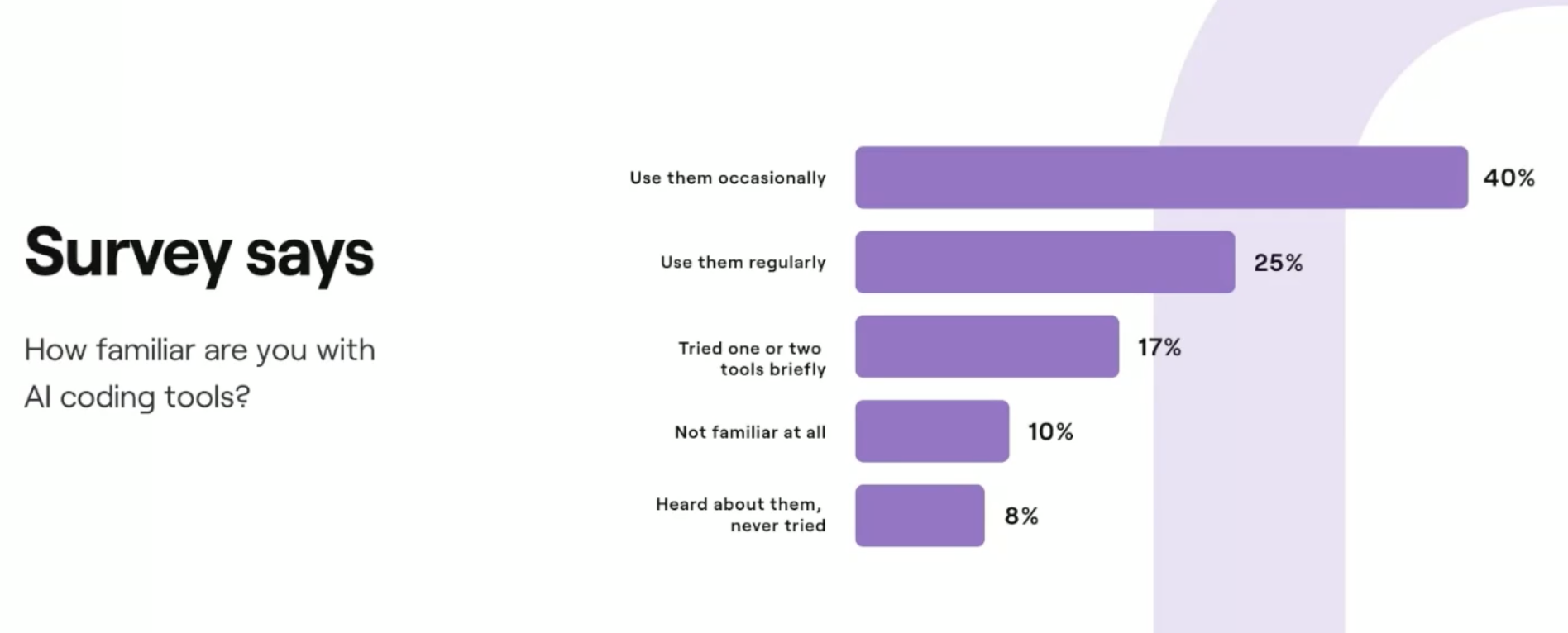
Survey results from Maze highlighting the growing adoption of AI tools among product professionals
Speed, however, means little without validation. In a world where anything can be built quickly, the best teams know that building the right product fast is what sets them apart. Especially when new features, functionality, and feasibility need to be assessed before they ever reach the backend or introduce bottlenecks for engineers.
That’s why AI prototypes still need validation, usability testing, behavioral analysis, and real-user feedback, to ensure what looks good also works well.
Why AI-generated designs and prototypes need validation
AI tools make it faster than ever to go from an idea to a working prototype. Designers can input a couple of prompts and instantly get screens, layouts, and even user flows. It’s a cheat code for prototyping, but fast results don’t always mean good results, especially when teams use these early-stage flows to inform product design, rapid prototyping, frameworks, or roadmap planning.
Here are some of the reasons you need to validate these AI-generated prototypes:
- Looks right, works wrong: Studies from Nielsen Norman Group found that AI-generated prototypes often have visual issues like poor hierarchy, inconsistent spacing, and low contrast. These flaws make navigation harder and content less scannable, both resulting in a poor user experience for end users. It also creates hidden pain points during handoffs from design to engineering or when planning a production-ready build.
- Lack of real context: AI can’t fully understand your business goals, audience, or product history. It creates what’s most statistically likely, not what’s strategically correct. As a result, designs often include misplaced components or unclear flows that still need to be tweaked manually by the design team, product managers, and engineers working through backend logic, APIs, or technical feasibility.
- Weak design-system alignment: Enterprise teams using design systems quickly find that AI-generated designs break component rules or ignore brand guidelines, reducing the value of automation. This leads to rework during handoff, more time spent fixing wireframes, and delays in your development process or saas release cycles.
- Recycled patterns: Since AI learns from common examples online, it reproduces familiar layouts and generic UI styles, leading to experiences that blend in rather than stand out (and often include the same standard design mistakes you’re looking to avoid). This adds noise to your backlog, strains your roadmap, and increases the risk of bottlenecks later when engineers try to make the prototype scalable.
These gaps lead to experiences that confuse users, slow down task completion, and lower confidence in the product. Without validation, teams risk moving full steam ahead in the wrong direction.
Methods for validating AI prototypes with users
Here’s a look at the most effective ways to validate AI-generated prototypes and when each one is the right tool for the job.
Research method | Why it’s beneficial for testing AI prototypes | Example questions and scenarios |
|---|---|---|
Live website testing | AI tools often generate clickable flows that “look right” but behave unpredictably. Live website tests reveal real navigation issues, unexpected paths, and interaction friction. |
|
Prototype usability testing (task-based) | AI-generated screens may have unclear affordances or missing steps. Task-based testing shows whether users can complete key journeys without guidance. |
|
Mobile usability testing | AI tools tend to produce desktop-first flows. Mobile-specific tests identify issues with touch targets, spacing, scrolling behavior, and visual density, all of which influence mockups and wireframes and the feasibility of delivering a scalable mobile experience. |
|
First-click testing | AI layouts may misplace CTAs or navigation elements. First-click tests confirm if users instinctively know where to begin a task. |
|
Tree testing | AI-generated nav structures may be too generic or misaligned with user mental models. Tree testing validates whether your information architecture is intuitive. |
|
Card sorting | If AI-generated screens rearrange categories or sections, card sorting shows whether users group information similarly. |
|
Surveys and opinion scales | AI prototypes may feel right, but still frustrate or confuse users. Surveys capture emotional context and perceived difficulty. They give you the chance to ask specific questions in an unmoderated environment. |
|
Screen recordings and session replays | AI designs sometimes produce inconsistent spacing, broken interactions, or unexpected scroll behavior. Screen recordings uncover micro-friction not visible in click data alone. |
|
A/B or variant testing | AI tools can generate multiple versions of a screen quickly. A/B testing helps compare visual hierarchy, CTA placement, or layout options, especially when validating production-ready variations or deciding how to tweak mockups during early-stage product discovery cycles. |
|
How to validate AI prototypes with Maze
Maze is an end-to-end user research platform that helps teams test ideas, prototypes, and live websites with real users. It brings quantitative and qualitative methods together in one place, so product teams can validate designs before development.
Testing an AI-generated prototype with Maze only takes a few steps.
At a high level, you’ll publish your AI prototype, connect it to Maze, and add the tracking code that powers real-user testing.
Each step brings your prototype closer to live validation—so you can see how people interact with your design, collect usability data, and make confident product decisions before you move to development.
Here’s what the full workflow looks like at a glance:

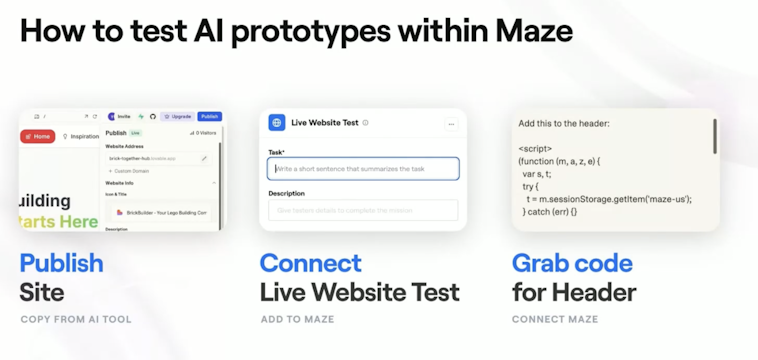
Overview of the three core steps to test AI-generated prototypes with Maze
Want to see how it all comes together? 🎬
Watch our on-demand webinar, How to Leverage AI Prototyping Tools with Maze, to learn how teams use Figma Make, Lovable, and Bolt with Maze to speed up validation, improve collaboration, and make smarter product decisions.
Here’s how to run a full validation workflow for your AI prototype in Maze, from setup to analysis.
1. Generate your AI prototype with FigmaMake, Lovable, Bolt, etc
AI prototyping tools make that first version—your MVP—faster to produce than ever. With just a few prompts, tools like Figma Make, Lovable, and Bolt can turn an idea or user flow into a clickable prototype in minutes.
- Figma Make lets you describe your flow in plain language—such as “Create a three-screen onboarding for a mobile banking app”—and instantly generates multi-step screens, logic, and transitions. You can edit visually or refine your prompt until the structure feels right.
- Lovable builds full working interfaces from simple descriptions or reference screenshots.
- Bolt generates responsive layouts and functional React code from a single prompt. It’s useful when you need realistic data or dynamic behavior in your prototype.
Here’s an example of a website created with Figma Make:

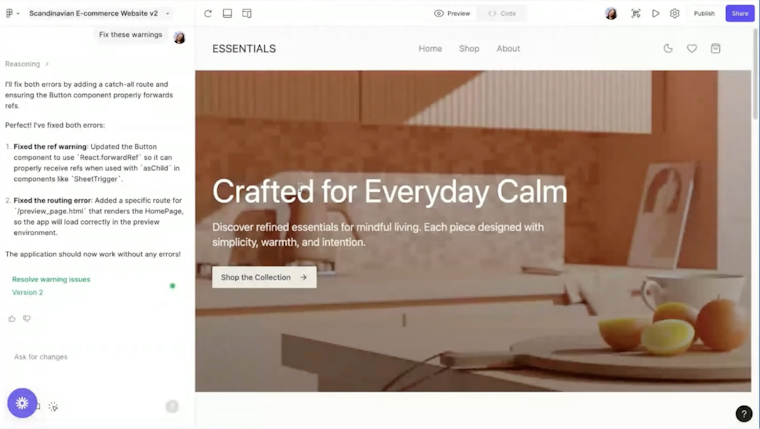
Example of a published website created in Figma Make
At this stage, don’t worry about perfection. The goal is to get a tangible version of your concept that captures the main user journey, enough to test core journeys and navigation flows.
Once your AI-generated prototype looks and behaves like a minimal working product, you’re ready to bring it into Maze for validation.
2. Publish your AI prototype
Once your AI-generated prototype is ready, it needs to be live before you can test it. Whether you built it in Figma Make, Lovable, or Bolt, publishing gives you a shareable URL that Maze can recognize later.

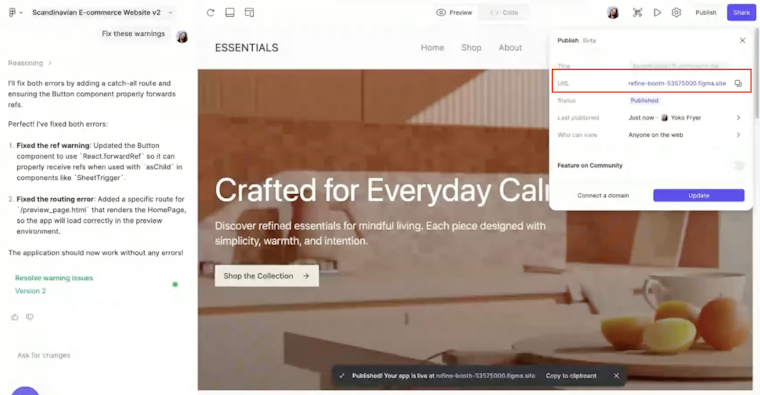
Publishing a live prototype in Figma Make and copying the hosted URL to use for Maze testing
Keep that URL handy, you’ll need it when you connect your design to Maze later on.
Set up your Maze study
Once your prototype is published and shareable, the next step is to bring it into Maze. This is where validation begins. Setting up your study lets you define what you’re testing, who will take part, and how you’ll measure success.
From your Maze Home screen, click ‘Create new maze.’ You can start from scratch* or open an existing project. In this view, you’ll build your study by adding blocks.
Each block represents one part of your test, such as a task, question, or follow-up survey. Every maze needs at least one block to start.
As a best practice, we recommend that you begin your study with a multiple-choice block. This helps participants ease into the session before they start completing tasks or navigating your AI prototype.
💡 You don't always have to start from scratch. Choose from our templates to start with a pre-built maze, or go through our repository with ready-made questions.

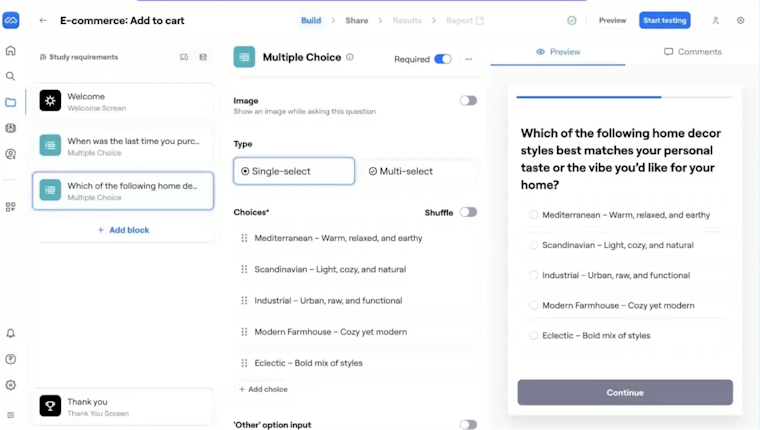
Adding a multiple-choice question block in Maze to warm up participants and capture early insights before live website testing
After your warm-up questions, the next key block to add is a Website Testing block. This is where you’ll connect your published prototype, whether from Figma Make, Lovable, or Bolt.
Which brings us to the next step…
4. Connect your AI prototype to Maze
With a published AI prototype and a research maze at the ready, it’s time to connect the two. This step links your live AI-generated design to your maze so that you can begin testing your prototype with real users.
Let’s take a look.
4.1 Add the ‘Live website testing’ block
In your maze editor, click ‘Add block’ → ‘Live website testing.’ This is where participants will complete tasks on your AI prototype.

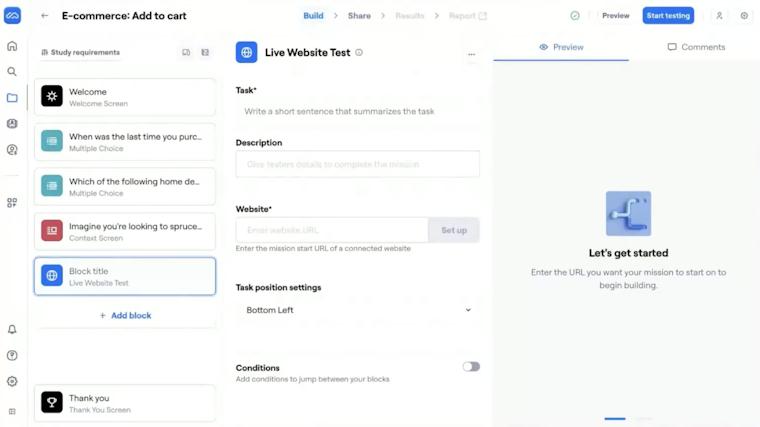
4.2 Name your task and write a short description
Give the block a clear, action-focused title such as “Complete the signup process” or “Navigate to pricing.” Add a short description that explains what participants should do without overexplaining.
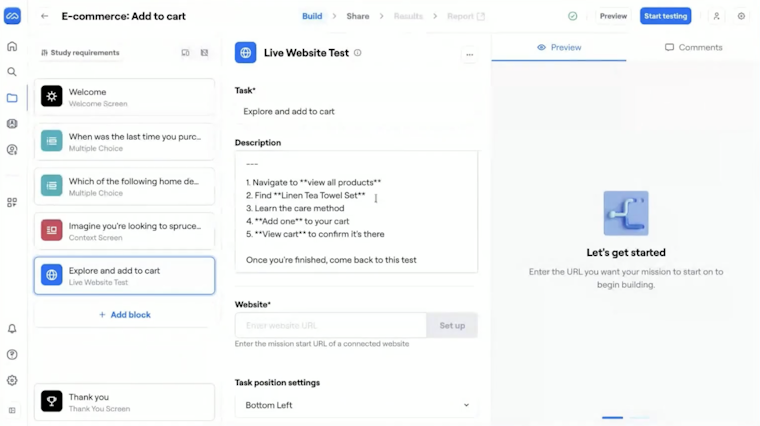
Setting up a Live Website Test in Maze with task instructions and steps for participants to complete during usability testing
4.3 Paste your prototype’s link
Copy the published URL (from step 1) from your Figma Make, Lovable, or Bolt project and paste it into the ‘Website’ field provided. Then click ‘Set up.’

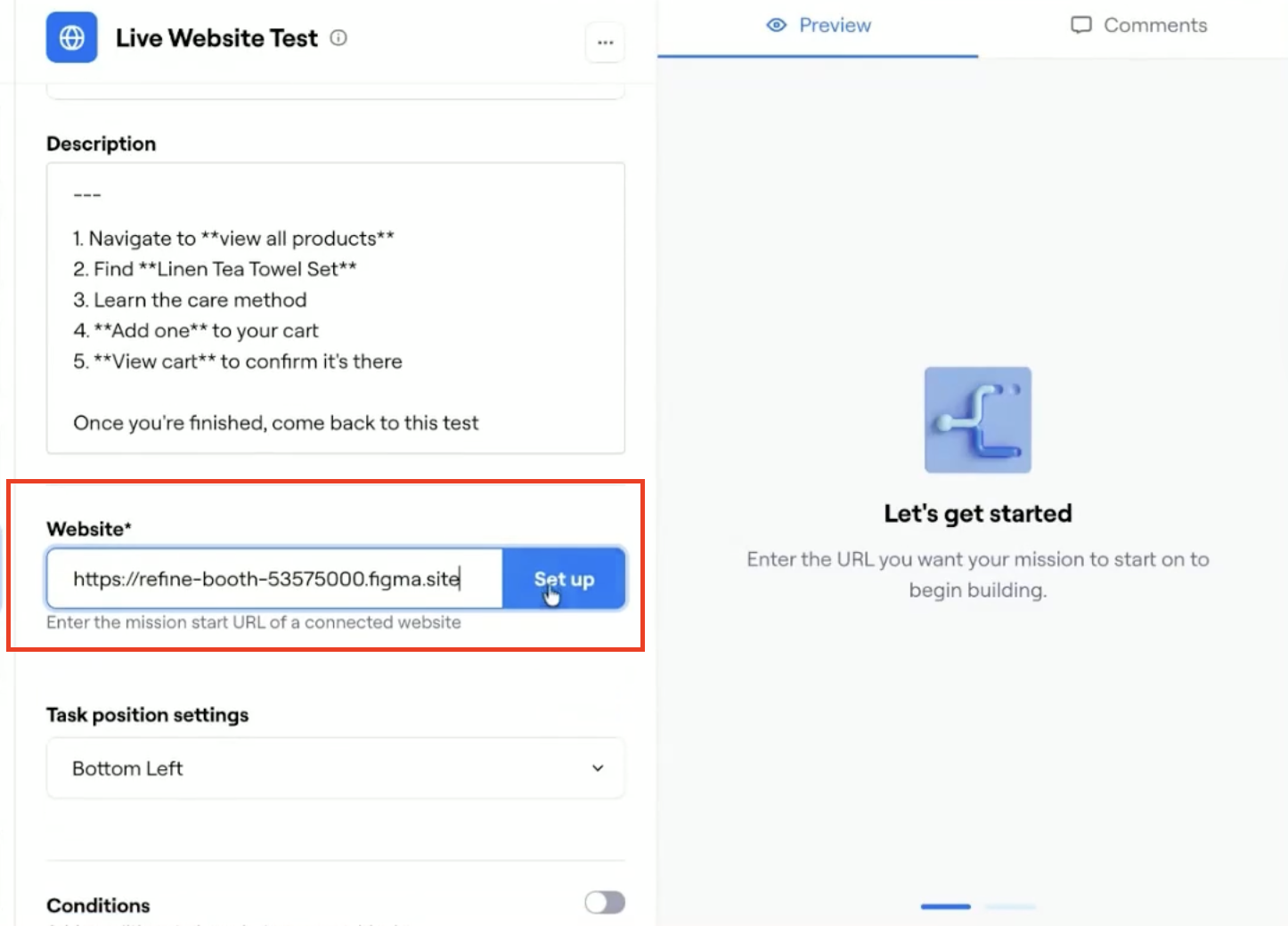
Adding the published Figma Make site URL to the Live Website Test block in Maze to connect your prototype and begin setup
4.4 Add the Maze tracking snippet
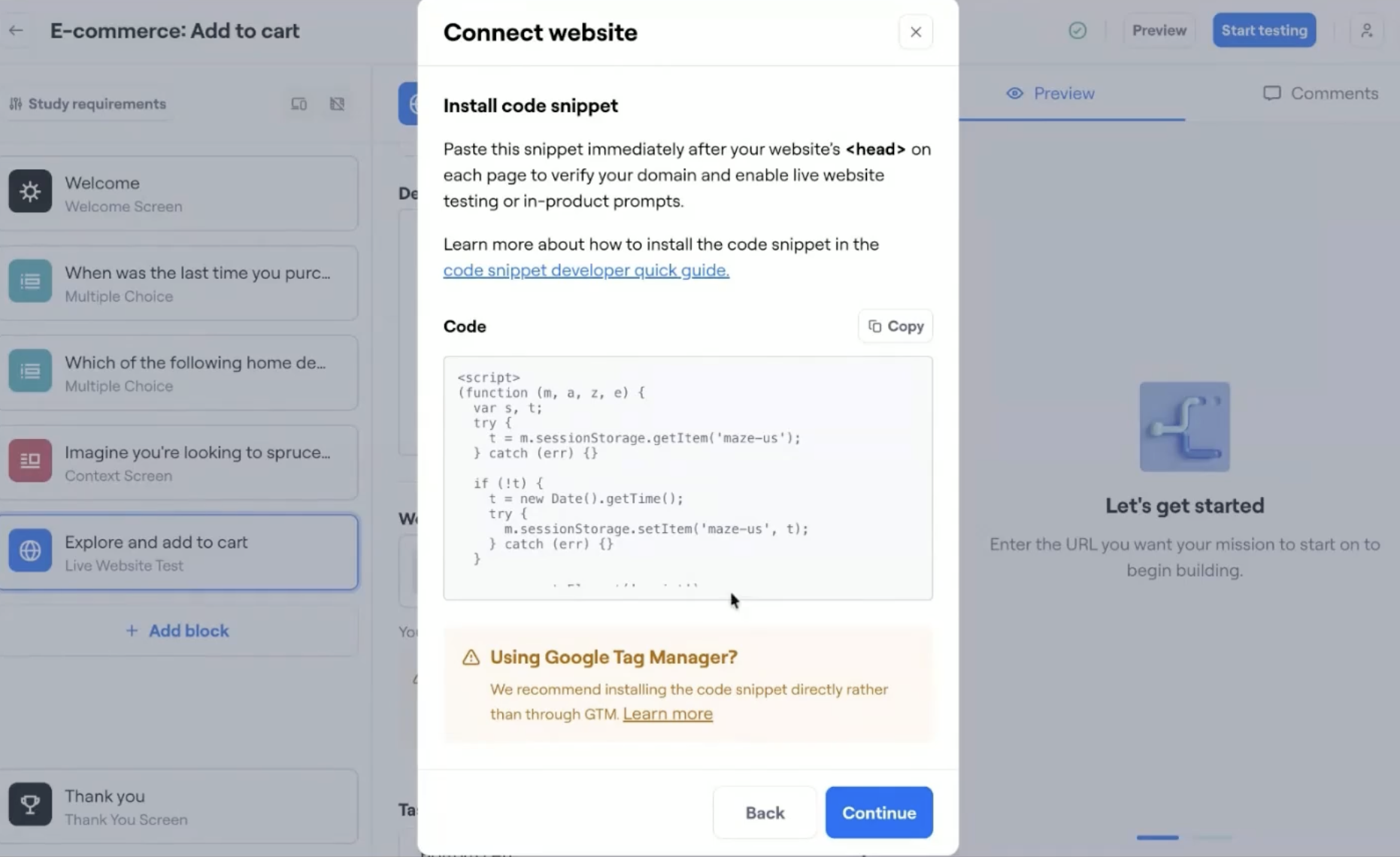
For testing your prototype, Maze needs a tracking snippet. This snippet allows Maze to track clicks, paths, and interactions across your AI-generated website.
Here’s how to get it and install it into Maze:
- In Maze, go to ‘Team settings’ → ‘Connected websites’ → ‘Connect a website’
- Enter your site’s base URL and click ‘Continue’
- Select ‘I have access to my website code’ to generate your unique tracking snippet
- Copy the snippet and paste it directly after the opening <head> tag in your prototype’s code
- Republish or update your site
- Return to Maze and click ‘Verify’ to confirm it’s installed correctly
Once it’s verified, your domain appears under Connected websites, and your prototype is fully enabled for live website testing.

Next, open your prototype in Figma Make, Lovable, or Bolt, depending on where you built it.
If you’re using Figma Make:
- Open your published site
- On the left sidebar paste your Maze tracking snippet with the prompt “Add script to Header”
- Click ‘Update’ to make the change live

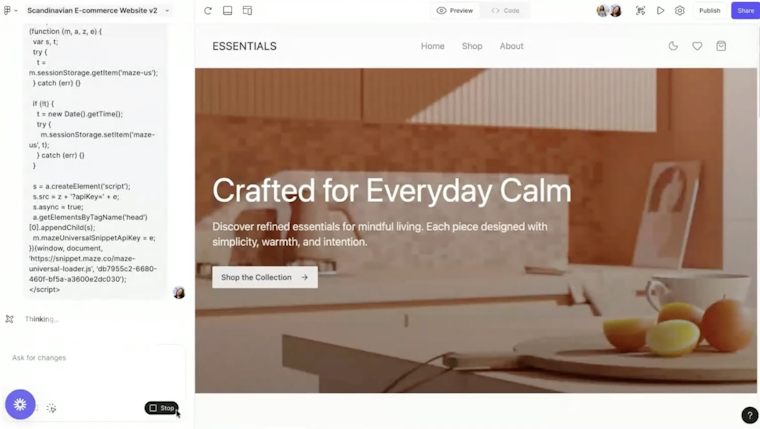
Adding the Maze tracking snippet in Figma Make by pasting the code inside the site’s <head> section before publishing
If you’re using Bolt:
- Open your project in Bolt
- Click ‘Code’ next to the Preview window
- Open index.html
- Paste your Maze tracking snippet between the <head></head> tags
- Deploy your site using the Bolt → Netlify integration
- Once deployed, return to Maze and click ‘Verify’

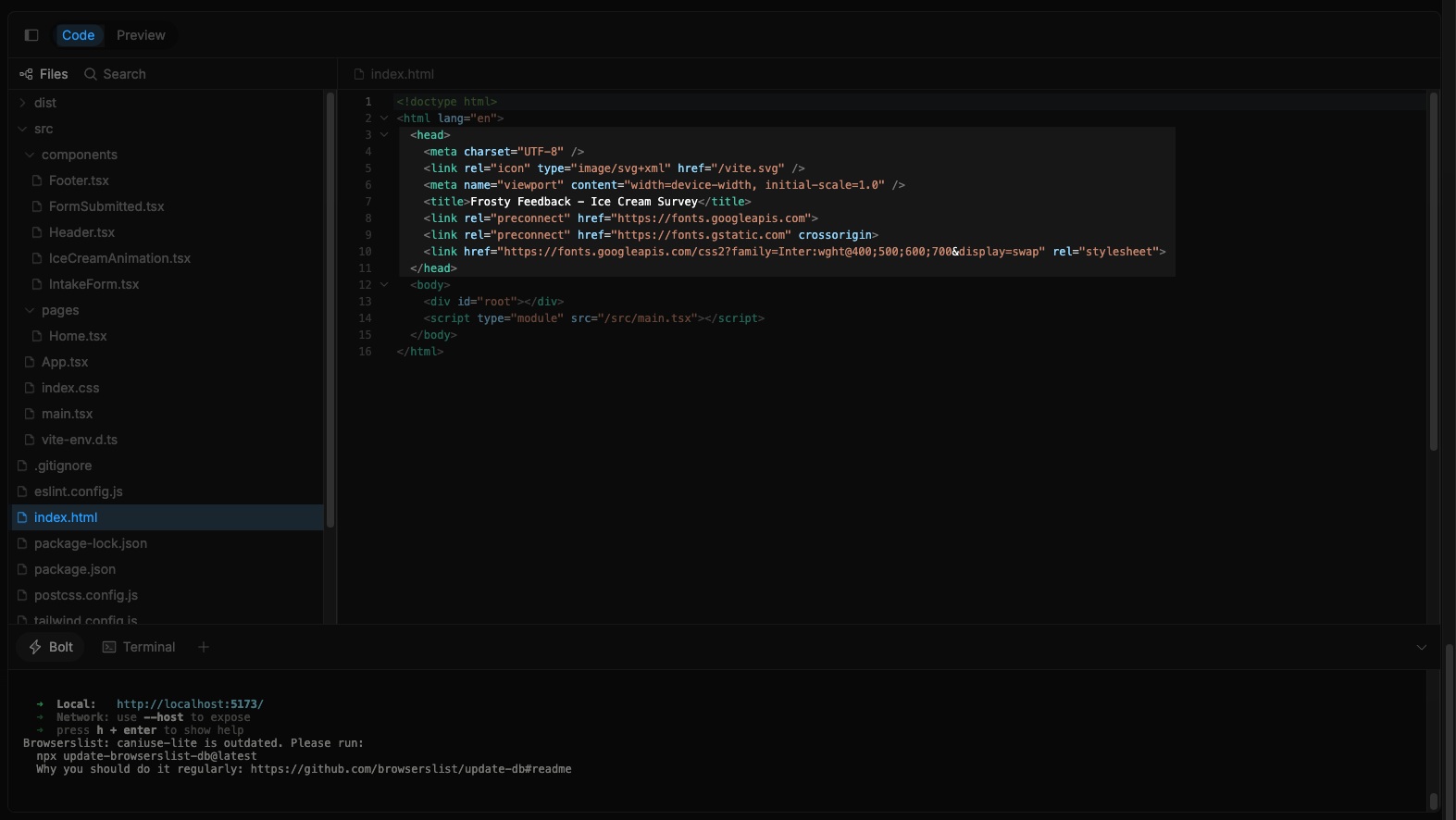
Adding the Maze tracking snippet inside the <head> tag in Bolt’s index.html before deploying your AI-generated site
If you’re using Lovable:
- Open your project in Lovable.
- Click the <> icon above the preview to open the source code
- Navigate to index.html
- Paste your Maze tracking snippet between the <head></head> tags
- Publish your site using the ‘Publish’ button
- Go back to Maze and click ‘Verify’
Note: If you’re on Lovable’s free plan and can’t edit code, paste your snippet in the chat and ask Lovable to add it for you.

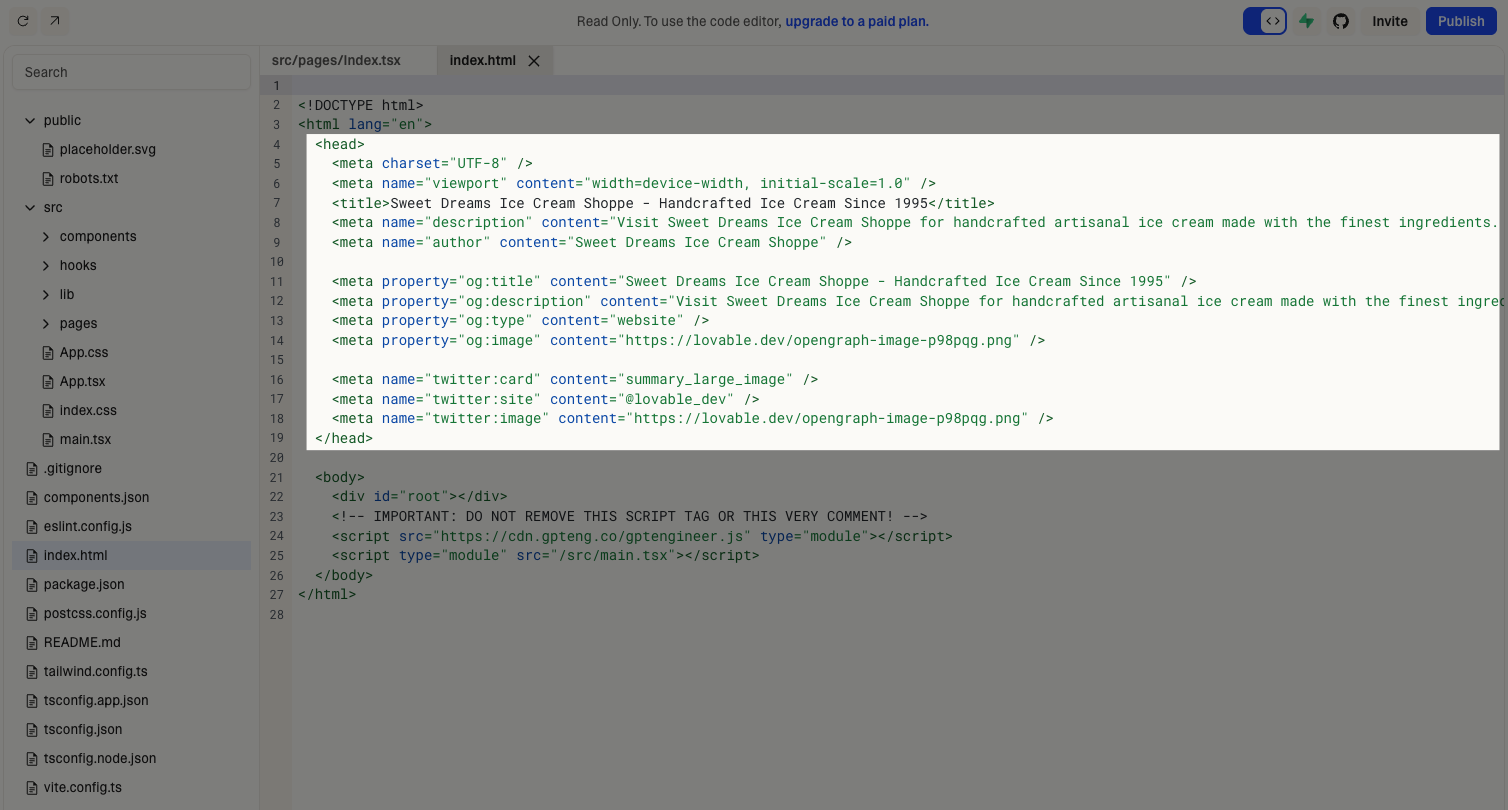
Adding the Maze tracking snippet inside the <head> section of a Lovable-generated site before publishing
4.5 Republish and verify the connection
Once the snippet is added, republish or update your site so the changes go live.
Then go back to Maze and click Verify. Maze will check if the snippet is installed and confirm that your prototype is ready for testing.
Once verified, you can continue setting up your website testing block by adding the user path you want participants to follow, such as completing a checkout, signing up, or navigating to a feature page.
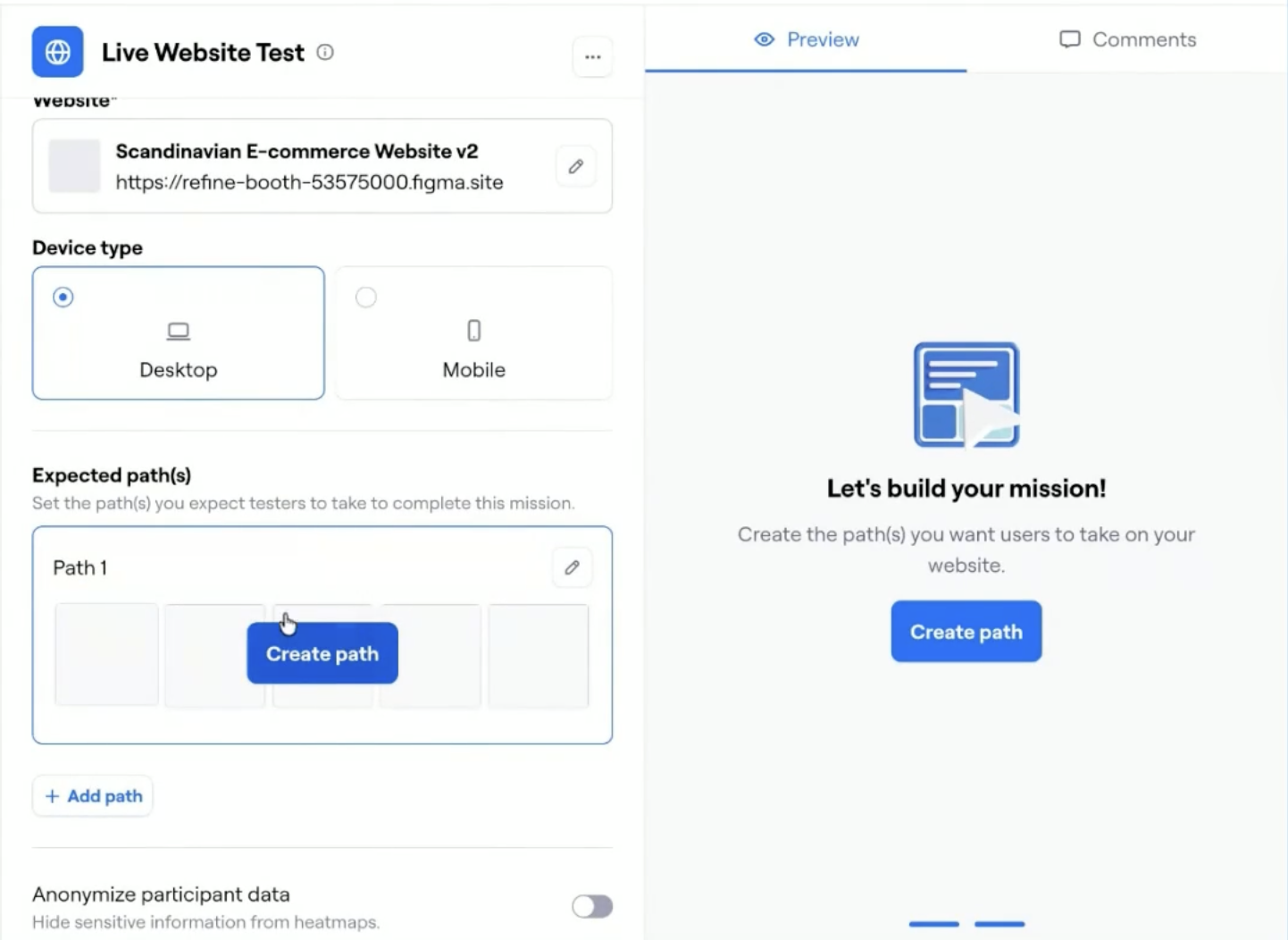
Defining the expected user path in a Live Website Test to track how participants navigate through your AI-generated prototype
5. Build out the rest of your test
Once your Live Website Test block is in place, you can start expanding your study to capture a complete picture of how users interact with your product. Maze offers a range of testing options that help you move from single-task validation to complete AI product development insights.
You can combine quantitative and qualitative blocks to understand both what users do and why they do it. Quantitative data from website testing tells you where users click, how long tasks take, and where they drop off.
You can also use surveys to collect quick impressions right after each task, asking questions like “Was this step easy to complete?” or “How confident did you feel doing this?” These moments of reflection often uncover usability issues that performance data alone can’t explain.

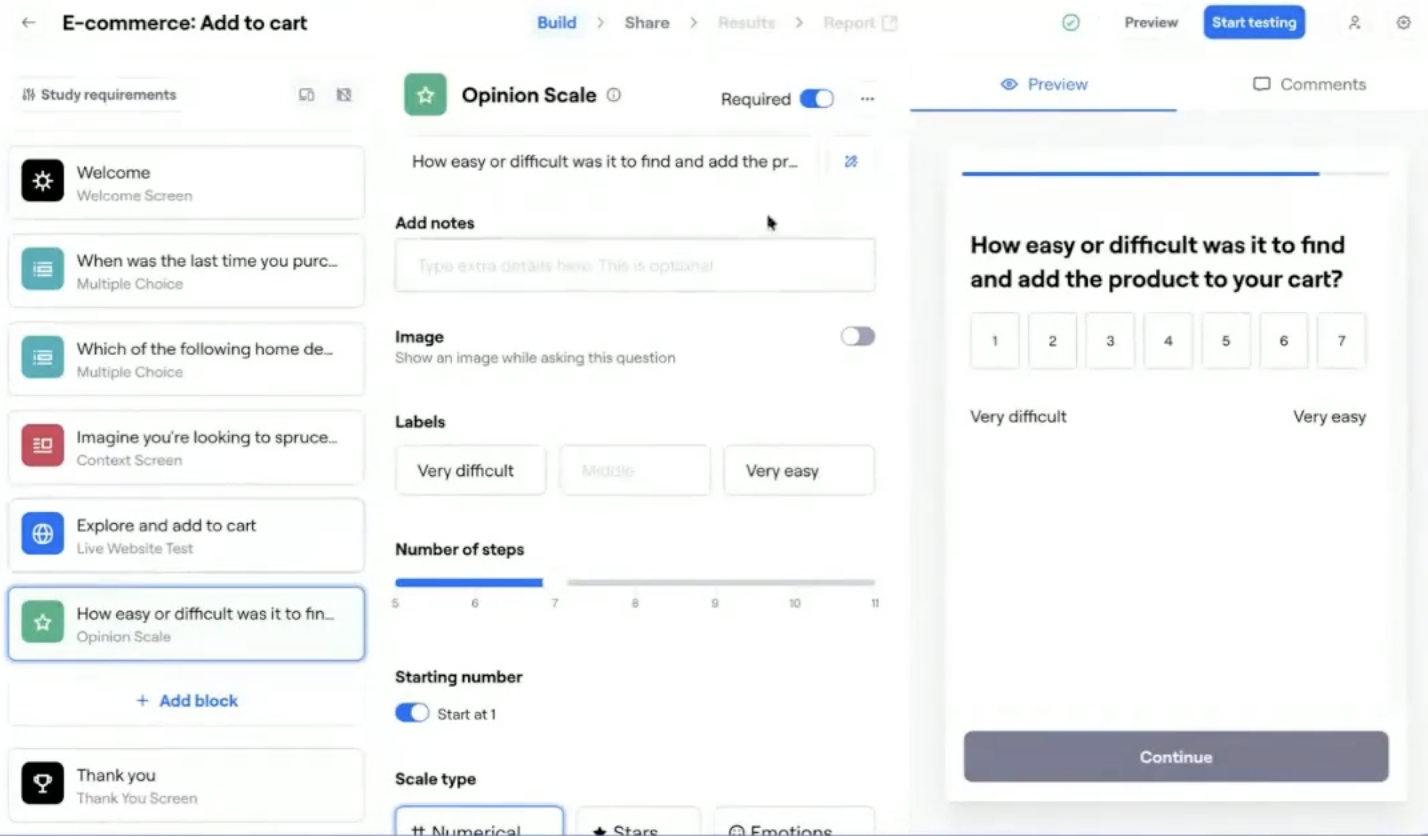
Adding an opinion scale question in Maze to capture participant feedback and measure satisfaction after completing a task
If your AI prototype includes a mobile flow, you can also run mobile testing to see how users experience your design on smaller screens. Mobile tests reveal interaction details like tap accuracy, scroll behavior, and visual hierarchy, critical for refining mobile-first experiences.
6. Start testing with participants
Once your maze is built and connected, you’re ready to bring in participants. You can either test with your own users or recruit new ones directly from Maze.
If you already have an audience, customers, beta testers, or internal users, you can invite them through Maze Reach. Reach is your built-in participant management tool. It helps you create and manage your own database of testers, organize them by tags or segments, and send studies directly to the right people.
If you don’t have your own testers yet, you can hire participants from the Maze Panel. Maze partners with trusted providers, like Prolific and Respondent, to give you access to over 3 million B2B and B2C participants in 150+ countries. You can target specific audiences using 400+ advanced filters from job role and industry to location, experience level, and device type.
Before launching, double-check your maze length (under 30 minutes for unmoderated tests) and make sure all blocks work as expected. Clear tasks and short surveys lead to better-quality data and more engaged testers.
Once everything looks good, click ‘Share’ → ‘Hire from Panel’ or ‘Send via Reach’ to launch your test.

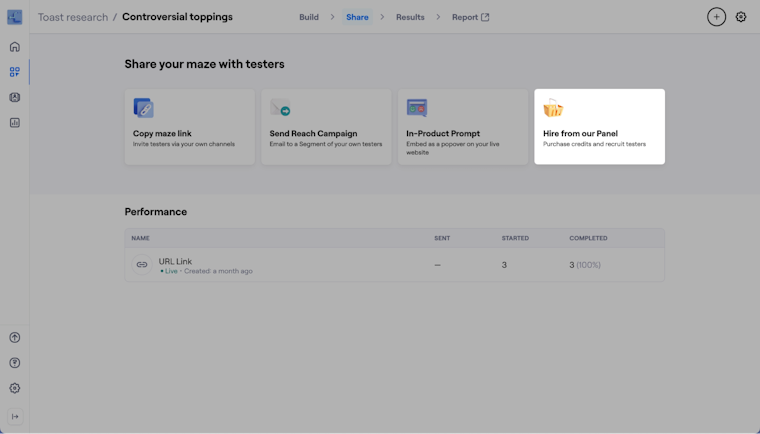
Options in Maze for sharing your study and recruiting participants, including hiring testers directly from the Maze Panel
Then, you’ll need to set your targeting criteria, such as audience type, filters, device type, and participant count, before placing your order. After that, Maze handles the invitations, consent, and response collection, and you get the results within hours.

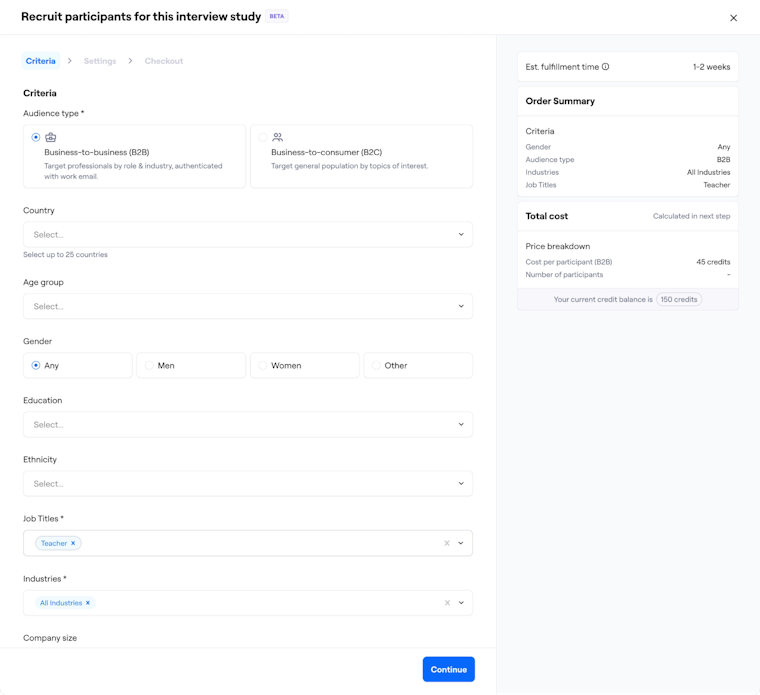
Setting targeting criteria for hiring participants from the Maze Panel, including audience type, demographics, job roles, and industries
7. Analyze your findings and re-evaluate
Once your test is live and participants have completed it, Maze automatically generates a report. Every report includes both a high-level overview and detailed metrics for each task, block, or question you included in your study.
For live website testing, you’ll see how well your AI-generated prototype performed in real-world conditions. Maze calculates a usability score (0–100) based on success rate, time on task, and misclicks. The report then breaks this down by:
- Direct and indirect success paths: How many users completed the task as expected, and where they dropped off
- Average duration and mission completion rate: How long it took users to finish each task
- Misclick analysis: Identifying points of confusion or friction in navigation

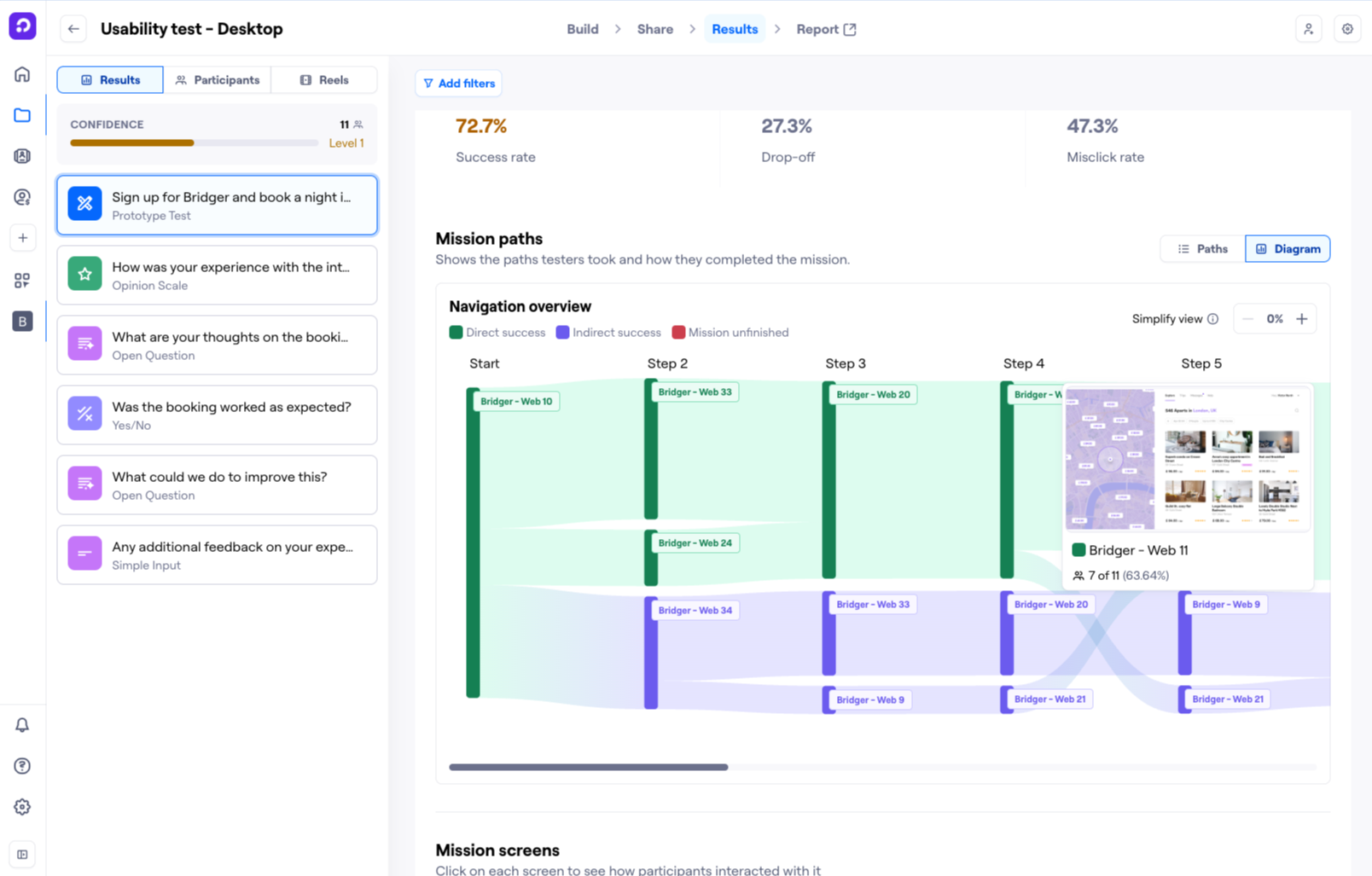
You’ll also get a visual path analysis, showing the exact routes participants took through your AI-generated prototype. This makes it easy to spot where users hesitated or took alternative paths, so you can refine layouts, flows, or copy.
If your study included qualitative blocks, like multiple-choice, open-ended, or opinion-scale questions, Maze aggregates and visualizes those too. You can identify sentiment patterns (“very easy” vs. “very difficult”), compare feedback across user groups, or highlight direct quotes to support design decisions.
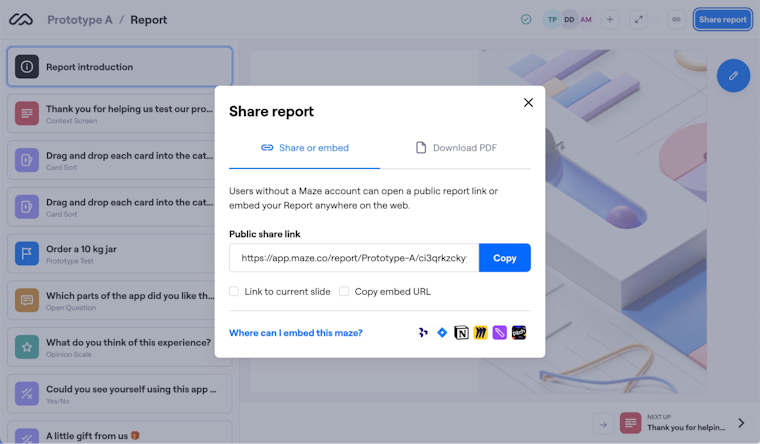
From here, use Maze’s themes and filtering tools to group insights, flag usability issues, and plan your next iteration. You can export reports, share them with your team, or present directly in Maze’s presentation mode to align everyone on the next steps.

Ground AI prototypes in real user insight with Maze
AI has made it faster than ever to generate ideas, screens, and even full product flows, but speed means nothing without validation. The difference between a polished concept and a successful product is how well it serves real people.
Maze helps teams close that gap. By combining AI-generated prototypes with real user testing, Maze turns quick ideas into proven experiences. You can launch a study in minutes, collect behavioral and survey data in one place, and see exactly how users interact with your design before writing a single line of production code.
Whether you’re experimenting with tools like Figma Make, Lovable, or Bolt, Maze ensures your workflow stays anchored in evidence. Each test helps you learn faster, build smarter, and deliver products that don’t just look right, but feel right to the people using them.
After all, even the smartest AI still needs a human reality check.


FAQS for testing AI prototypes with users
Can I test my AI prototype even if it's not fully functional?
Can I test my AI prototype even if it's not fully functional?
Yes, and you absolutely should. Early testing helps you identify usability issues before investing in full development. Maze supports testing for both interactive and static prototypes, meaning you can validate navigation, layout, copy, and user flow logic even if the product isn’t coded yet. The goal is to learn what works and what doesn’t before you commit resources.
How many participants do I need to test my AI prototype?
How many participants do I need to test my AI prototype?
For reliable results, Maze recommends testing with at least 20 participants. This helps account for differences in user behavior and ensures your findings are statistically valid. For early exploratory tests, 5–10 participants are enough to uncover major usability issues, but aim higher for data you can confidently act on.
What testing methods should I use to validate my AI prototype?
What testing methods should I use to validate my AI prototype?
The best approach combines quantitative and qualitative testing. For example:
- Run usability testing to capture task completion rates, navigation flows, and misclicks
- Add survey or opinion scale questions to gather user sentiment and understand why users behaved a certain way
- For mobile-first AI prototypes, run mobile usability testing to observe interaction differences on smaller screens
How long does it take to validate an AI prototype?
How long does it take to validate an AI prototype?
Maze enables rapid testing, so you can go from setup to insights in a few hours to a couple of days. Results appear in real time, helping teams validate designs and make decisions fast.