



















TL;DR
User behavior on mobile is different from user behavior on desktop. Users completing tasks on mobile have different needs and challenges, so mobile flows need dedicated testing. With Maze, you can test prototypes, live apps, and mobile web on real devices all in one workflow.
The process for testing mobile applications or products is straightforward: define what you want to learn, choose the right research method, recruit mobile participants, and analyze results with metrics like success rate, drop-off, and user paths.
Mobile now drives the majority of web usage, accounting for 55.9% of global traffic. Teams need to focus on mobile-specific behaviors, from how users tap, swipe, scroll, and complete forms to how they move through key flows on smaller screens.
In this guide, we look at how to test prototypes, live apps, and mobile websites. We also explain how to recruit the right participants, use AI-powered user insights to validate flows, and improve the mobile experience.
But first, let’s start with why it matters.
Why mobile app user research matters today
Mobile experiences are shaped by context. People use apps on the move, with interruptions, limited attention, and varying network conditions. This changes how they navigate screens, choose the next steps, and complete tasks—meaning mobile flows need to be tested for this unique context.
Here are some of the reasons user research is crucial for mobile product development:
- Mobile sessions are short and focused: People open your app or mobile site to complete specific tasks (onboarding, payments, account checks) in quick bursts, often while multitasking. Small usability issues like extra steps, unclear copy, and hard‑to‑reach buttons cause drop‑offs and churn.
- Interaction patterns are different on mobile: Users rely on thumb taps, gestures, and scrolling. Layouts that work on desktops can fail on smartphones because content is hidden below the fold, or tap targets are too small to hit reliably.
- Real‑world conditions change user behavior: People often use mobile apps while commuting, multitasking, dealing with poor connectivity, or moving between environments. Mobile app usability testing on actual devices reveals issues such as ineffective on-the-go performance, broken flows over slow connections, or tasks that take too long.
- Critical revenue flows are now mobile‑first: Onboarding, sign‑in, checkout, and key account actions increasingly happen on mobile apps and mobile web. Without targeted mobile UX research that combines qualitative insights (sessions, interviews, open feedback) with quantitative data (task success, time on task, error rates), you risk losing conversions and retention in your most important flows.
Mobile apps are used in a different context from desktop products. Smaller screens, touch-based navigation, changing connection quality, device permissions, interruptions, and shorter sessions can all affect how users move through a flow and complete tasks. That context makes mobile-first UX research essential for spotting friction that desktop testing can miss.
An AI‑first user research platform like Maze supports mobile app testing across research methods, so you can observe user behavior, validate design decisions with qualitative and quantitative data, and optimize your mobile experiences.

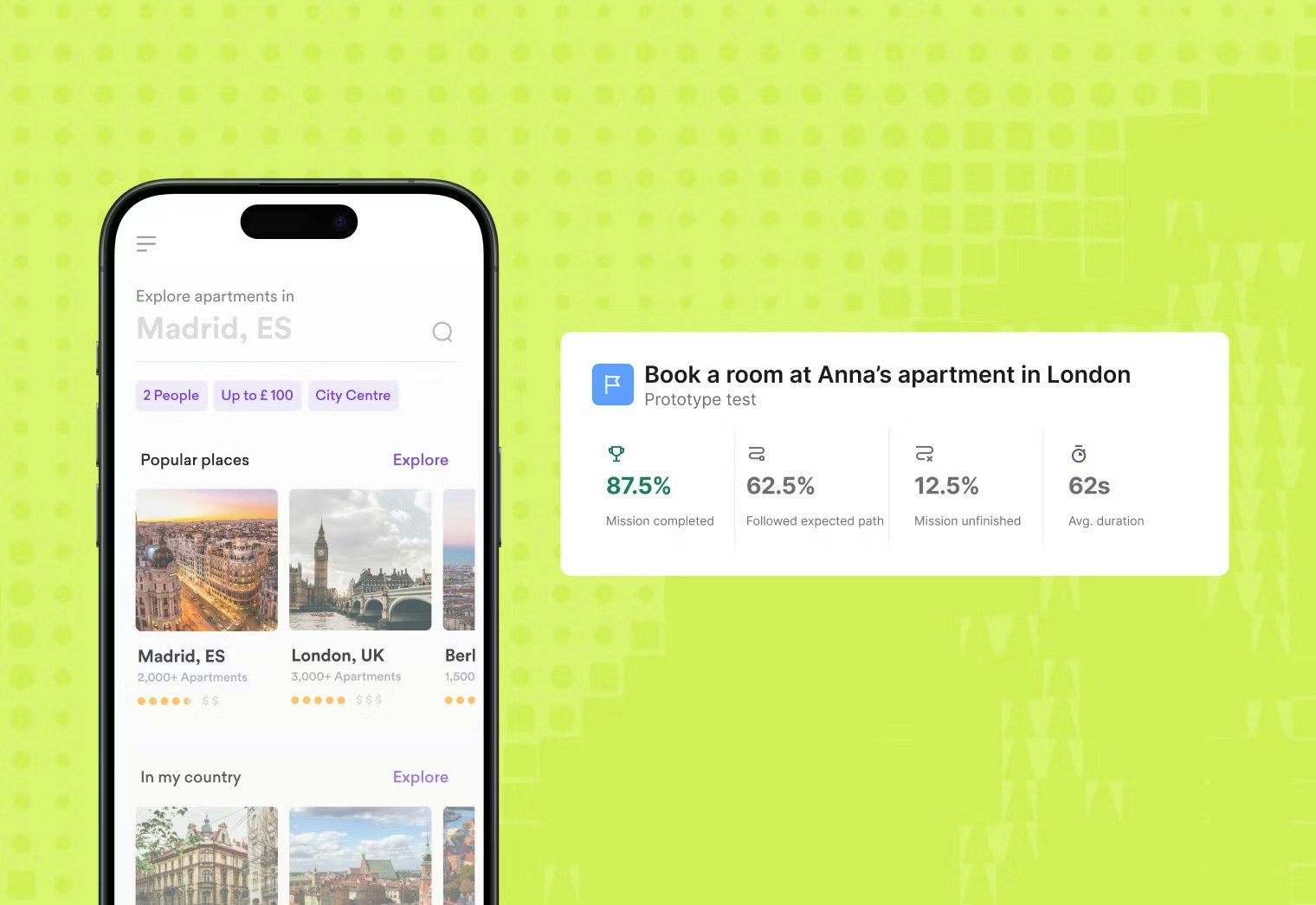
How Maze supports user research for mobile apps
Maze brings your mobile UX research into one place. You can test native apps and mobile web flows, from early prototypes to live experiences, and combine behavioral data with direct user feedback.
- Prototype testing for mobile flows: Test Figma prototypes as well as other AI-generated prototypes for mobile experiences. Maze tracks paths, task success, and drop‑offs so you can validate key flows—like onboarding, navigation, or checkout—before development.
- Unmoderated usability testing on native apps and mobile web: Run tasks on iOS and Android devices using mobile testing and the Maze Participate app.
- Live mobile website and in‑product testing: Use live website tests to study real user behavior on production mobile sites and web apps. Combine this with in‑product prompts after key actions to collect quick, context‑rich feedback from real users.
- Surveys and questionnaires for qualitative insights: Launch mobile‑friendly surveys to capture user needs, satisfaction, and preferences around your app experience.
- Interview studies, including AI-moderated sessions: Run moderated or AI-moderated user interviews to explore user interactions in more depth. Use these sessions to understand why users make certain decisions within your mobile product.
- AI‑powered mixed‑methods analysis: Bring quantitative data from unmoderated tests together with qualitative research findings from interviews, prompts, and surveys in one workspace. Maze AI summarizes results, clusters themes, and highlights patterns across devices and segments, so you get actionable insights for your mobile app.
- AI-powered analysis and reporting: Use automated reports, themes, and Clips to identify patterns and share findings with stakeholders.

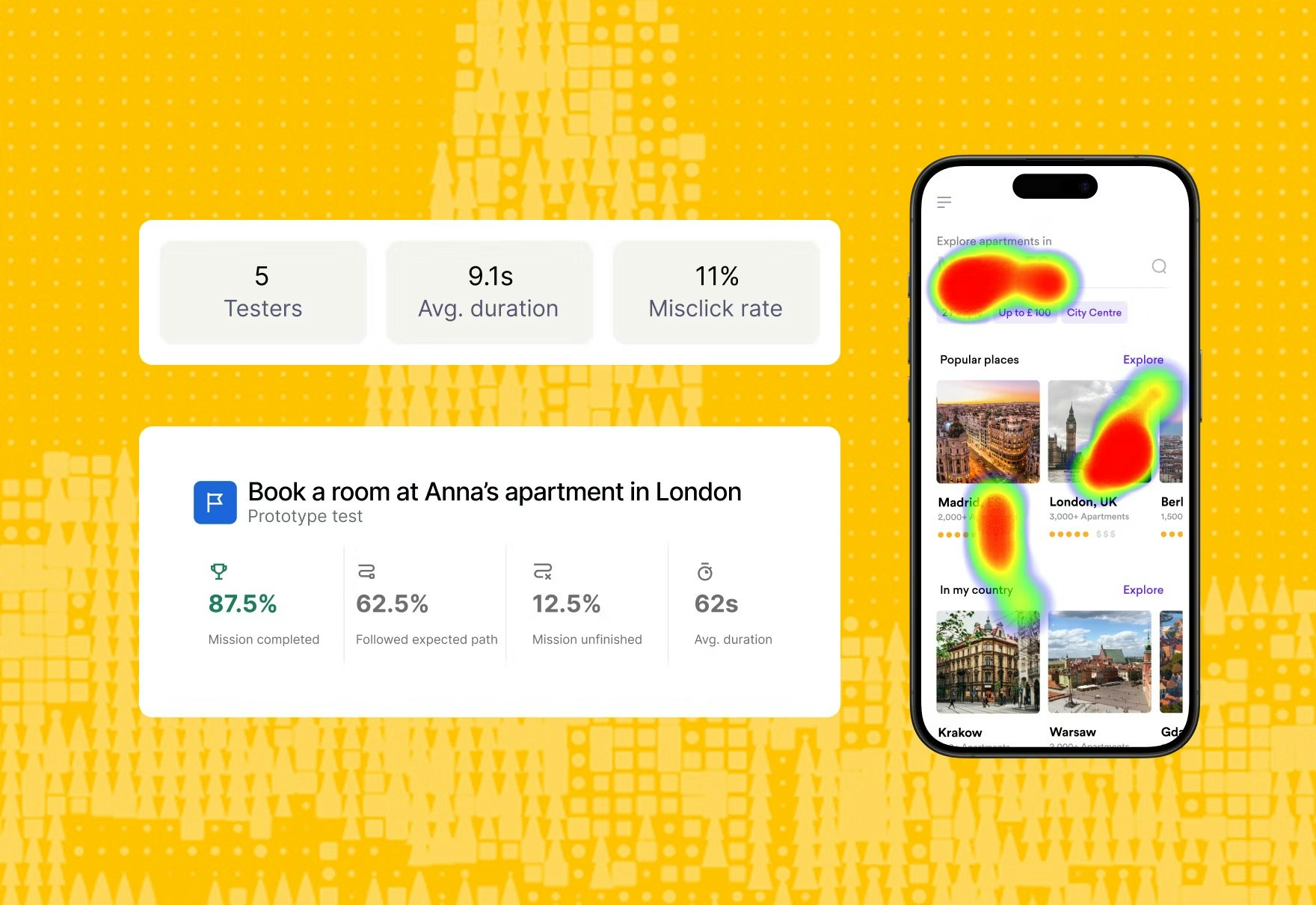
Maze also helps you recruit the right participants for mobile app research through Maze panel. You can access a pool of millions of B2B and B2C participants across 150+ countries, then narrow your audience with 400+ filters and custom screeners. This helps ensure your mobile feedback comes from people who match your target users.
You can also add qualifying screener questions directly to your panel order, so bad-fit participants are filtered out before they reach your study. To get fresh eyes on each study, use the ‘Exclude past participants’ filter to control whether repeat participants are eligible. This helps you capture cleaner feedback from people who match your audience and research goals.

Let’s break this down into a clear, step-by-step process for testing mobile experiences with Maze.
Testing mobile experiences with Maze in 4 steps
Here’s a simple framework to plan, run, and analyze mobile research with Maze.
Step 1: Decide how participants will join on mobile
Start by narrowing your mobile research goal. Are you trying to understand whether users can complete a key task, where they drop off, why they hesitate, or how the experience performs on a real device?
The clearer your goal, the easier it is to choose the right Maze study, write focused tasks, and measure the right outcomes. You could be interested in task success, drop-off points, completion time, user paths, or open-text feedback—all of which provide different insights that answer different research questions.
For example, if you’re testing onboarding, you might look at whether users understand the first few steps and know what to do next. If you’re testing checkout, you might focus on task success, drop-off points, and moments of friction. For a new feature, you may want to learn whether users can find it, understand its value, and complete the intended action without extra guidance.
Step 2: Choose your Maze Study type
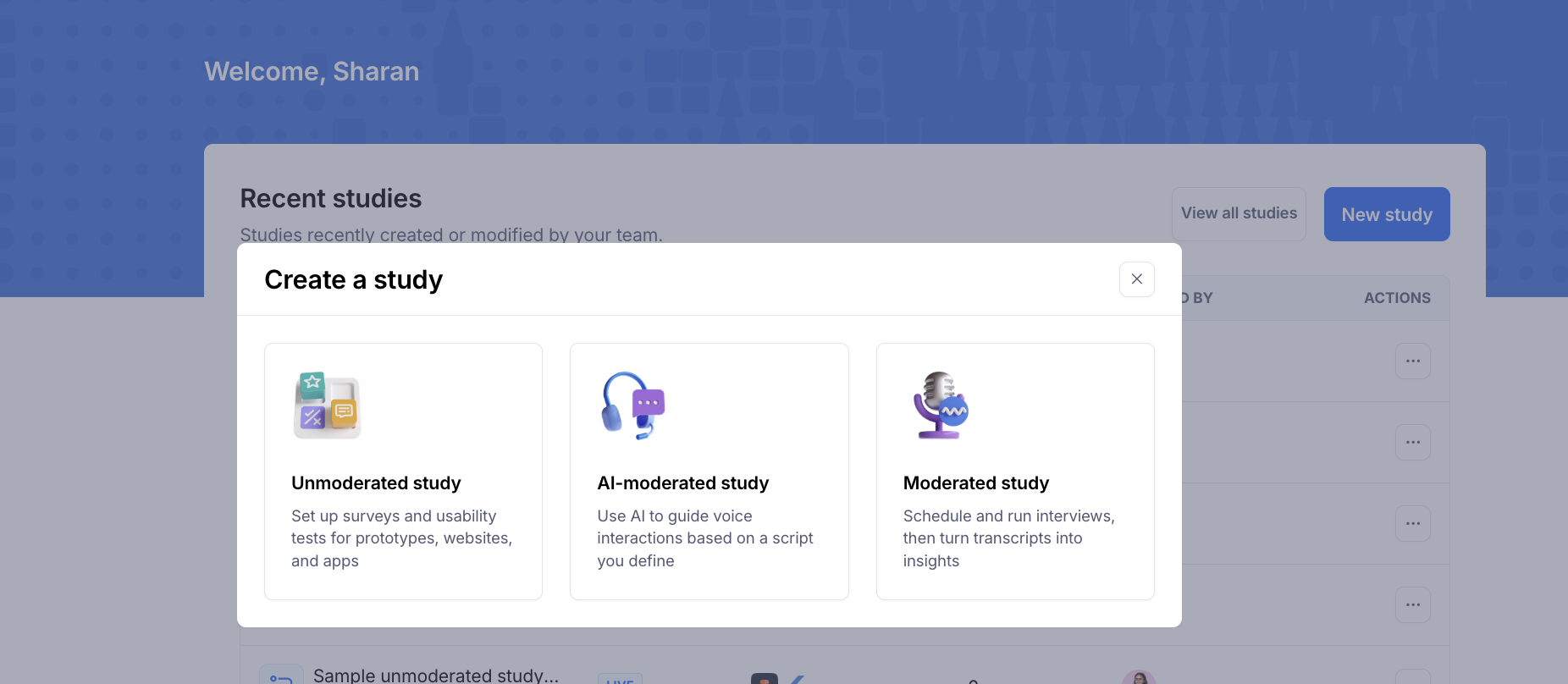
Once you know what you want to learn, you can get started in Maze. From your dashboard, click ‘New study’ to choose the study format that best fits your mobile research goal.
Maze gives you three study options:
- Unmoderated study: Best for self-guided mobile usability tests, surveys, prototype tests, live website tests, and app tests. Use this when you want participants to complete tasks on their own device and collect results at scale.
- AI-moderated study: Best for automated mobile interviews where you want AI to guide the conversation using a script you define. Use this when you want open-ended feedback without handling every session manually.
- Moderated study: Best for live mobile interviews where you want to observe participants in real time, ask follow-up questions, and explore behavior in more depth.
After choosing the study type, add your project details and decide how you want to build the study. You can use the AI study builder to generate a study plan, tasks, and questions; choose a mobile usability testing template to customize a pre-made setup; or start with a ‘Blank study’ and add everything manually.

Now, let’s take a look at how to set up these three types of mobile app research studies.
Unmoderated study: For self-guided mobile tasks at scale
The first step is to add blocks for the mobile experience you’re testing from the left-hand panel:
- Use a ‘Prototype test’ block to test mobile designs from tools like Figma. Connect a single prototype to the study, then select only the mobile frames you prepared.
- Use a ‘Website test’ block to test a live mobile website or web app. Paste the URL you want to test and set the device type to Mobile so the site opens at a 420 px mobile resolution.
- Use an ‘App Test’ block to test a native iOS or Android app. Add a clear task name and description, plus a link or instructions for accessing the app.
- Add ‘question blocks’ (open, multiple choice, opinion scale, Yes/No, and more) after tasks to capture extra feedback about the mobile experience.

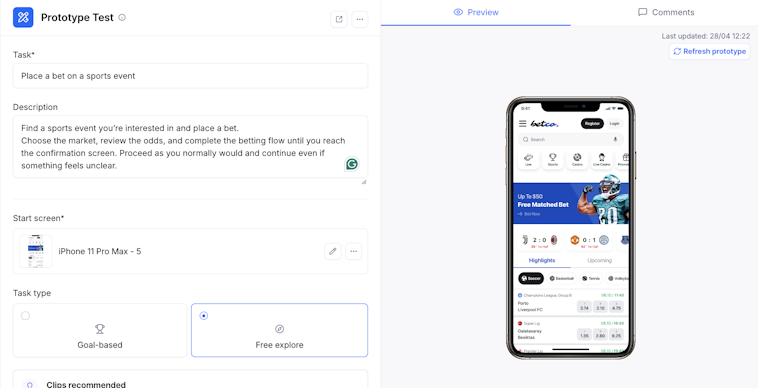
Next, open ‘Study requirements’ for your unmoderated study. Choose which devices are allowed. For mobile testing, select ‘Mobile’ or ‘Mobile and tablet’ so participants on unsupported devices see an error and cannot proceed.

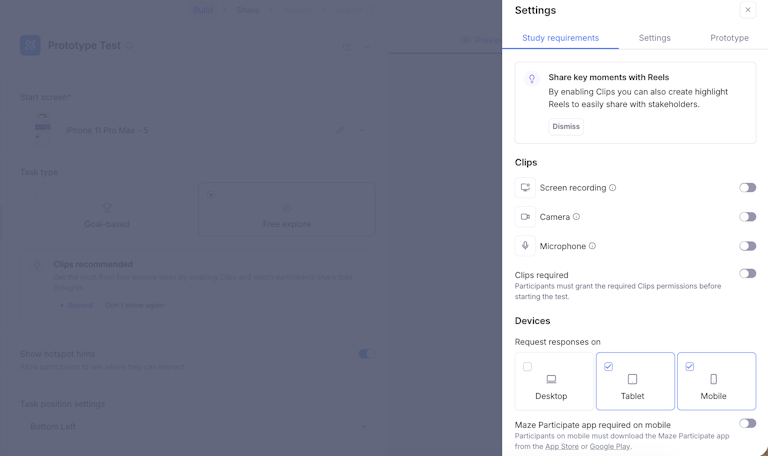
Decide how participants should join:
- Allow mobile browsers for lightweight tests where you do not need screen recordings.
- Require the Maze Participate app when you want more reliable performance and screen recording for Prototype tests, Website tests, and App Tests. To test a native app, you must use an App Test block and require Maze Participate so you can capture the mobile screen and audio.

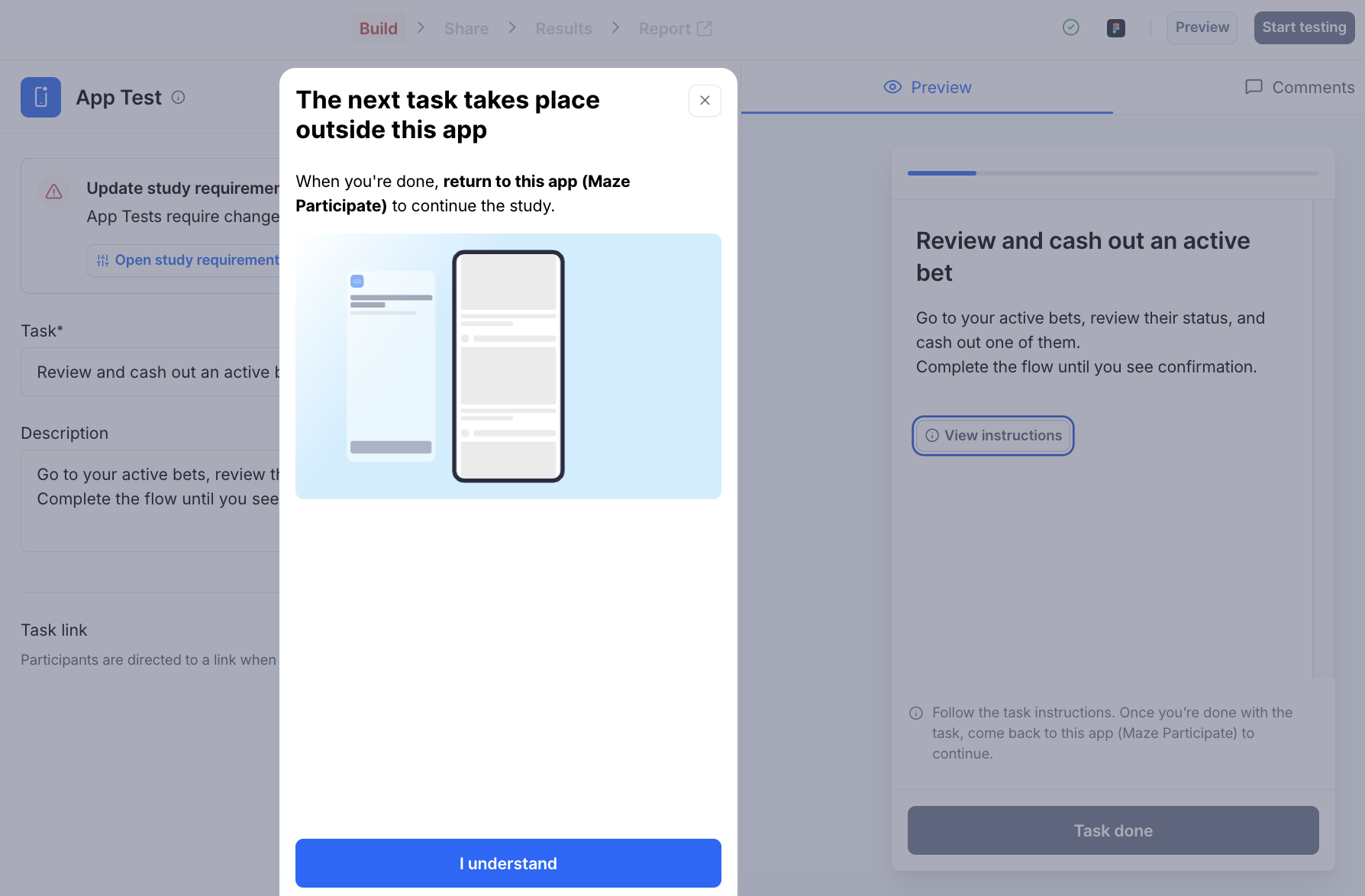
Click ‘Preview’ from the builder and open the preview link on a mobile device.
Step through the entire flow like a participant. Confirm that each block loads, screens fit the device, and navigation feels natural on a small screen.
AI‑moderated mobile testing: For conversation-led mobile app research
Choose an AI‑moderated study when you want interview‑style insights about how people use mobile apps, without scheduling and handling every session yourself. Maze AI moderator runs the conversation based on your goals, while participants join from their mobile browsers and talk through their experiences.
When you create an AI‑moderated study, you have two ways to get started:
- Guided setup (recommended): Maze walks you through describing the study, adding context, and reviewing suggested goals step-by-step
- Custom setup: You start from your own research plan and add goals and questions directly
After setup, you’ll see your ‘Plan’ on the left panel, with an introduction, one or more goals, and a closing. From here, you can edit the existing goals or click ‘Add goal’ to create more questions about your mobile app—for example, first impressions, navigation, or key tasks like sending money or checking an order.
For each goal, choose:
- A format (conversation only, conversation with image, or conversation with link) depending on whether you want a pure interview, a reaction to a screen, or a discussion about a page or prototype
- A discussion style (Freeform or Structured) and discussion depth (Shallow, Moderate, or Deep) to control how long the AI stays on that topic and how closely it follows your script

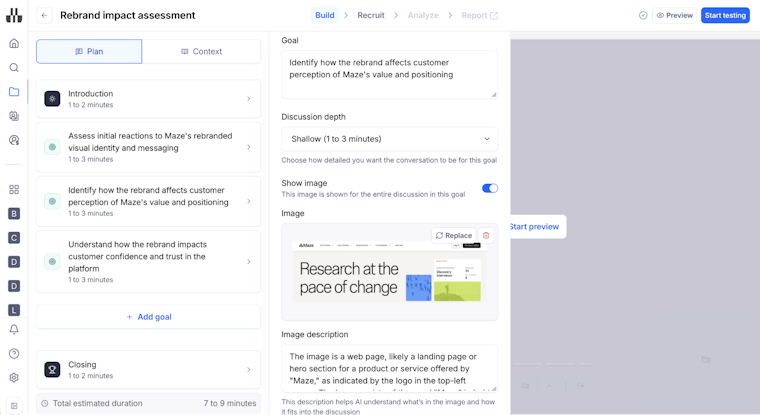
You can preview the experience at any time with ‘Start preview’, then move on to recruitment once the questions about your mobile app feel clear and focused.
Moderated study: For live mobile interviews with screen sharing
Choose a moderated study when you want to observe people using your mobile app or prototype in real time, ask follow‑up questions, and see their screens. Maze uses interview studies together with a built-in conferencing tool to run these sessions end-to-end (but you can also connect your favorite video conferencing tool if you’d prefer!).
When you create a moderated study, you first choose how you’d like to start:
- Set up recruitment: Define your availability, invite participants, and run live interviews, with Maze conferencing available for in‑app video calls
- Upload sessions: Import recordings from tools like Zoom, Teams, or Meet, then use Maze to generate transcripts, highlights, and reports

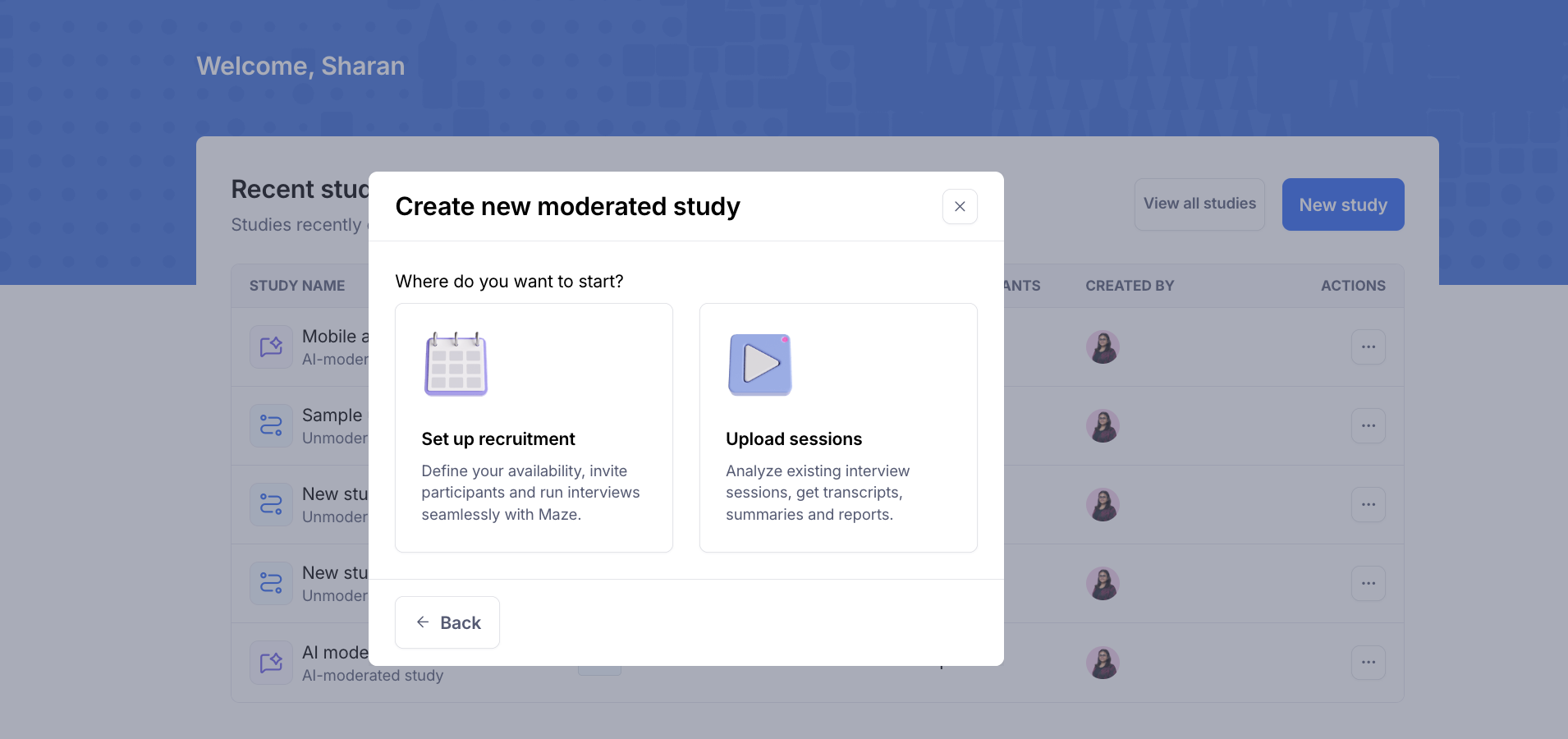
Here’s what to do next, depending on which option you choose here.
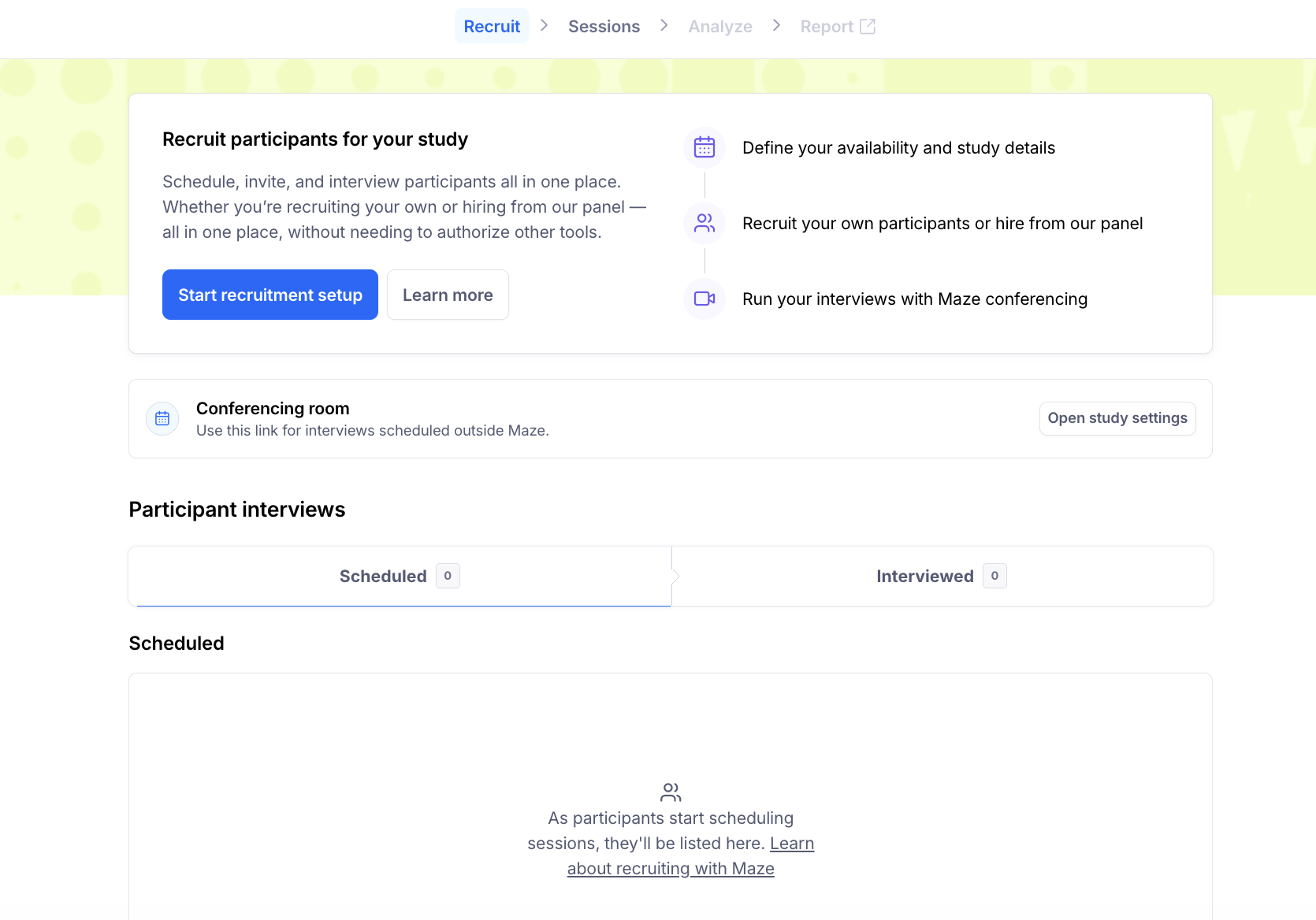
- Method 1: If you choose ‘Set up recruitment'
On the ‘Recruit’ tab, click ‘Start recruitment setup’ to define your interview details and availability.
Open ‘Study settings’ and, if you’re using Maze conferencing, enable the ‘Conferencing room’ for this study and the ‘Redirect to Zoom App’ option. This sends participants straight to the Zoom app when they join, which is required for screen sharing on mobile.
In your invite, tell participants which app to install (for example, Zoom) and whether you want them to join on mobile only or with both desktop and mobile devices.

For one‑device sessions, ask participants to join the call on their phone, start screen sharing from the conferencing app, and open your mobile prototype or app from the link you share in chat or email. The recording captures their mobile screen and think‑aloud feedback.
For two‑device sessions, ask participants to join on a desktop for conversation and camera, then connect their phone as a second device just for screen sharing. This reduces the everything-on-one-small-screen problem and works well for longer interviews.
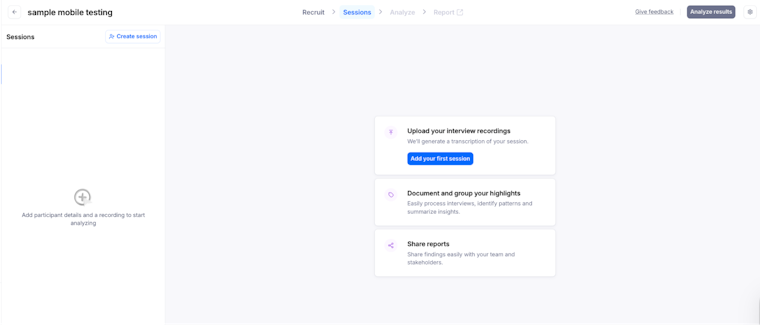
- Method 2: If you choose ‘Upload sessions’
This is where you import recordings from your pre-existing mobile interviews. Click ‘Add your first session (or Create session)’ to upload a recording and add participant details such as name, date, and device.
Maze then generates transcripts, lets you document and group highlights, and helps you build reports from your mobile sessions. You can tag moments where people struggled with specific screens, navigation, or gestures in your app.

💡 Before each moderated mobile session, share a short checklist with participants: which conferencing app they’ll use, whether they should join on mobile or on both desktop and mobile, and a reminder to enable ‘Do Not Disturb’ and install the app you’re testing. Screen sharing usually works best in the native conferencing app, not in a mobile browser.
Step 3: Recruit the right mobile participants

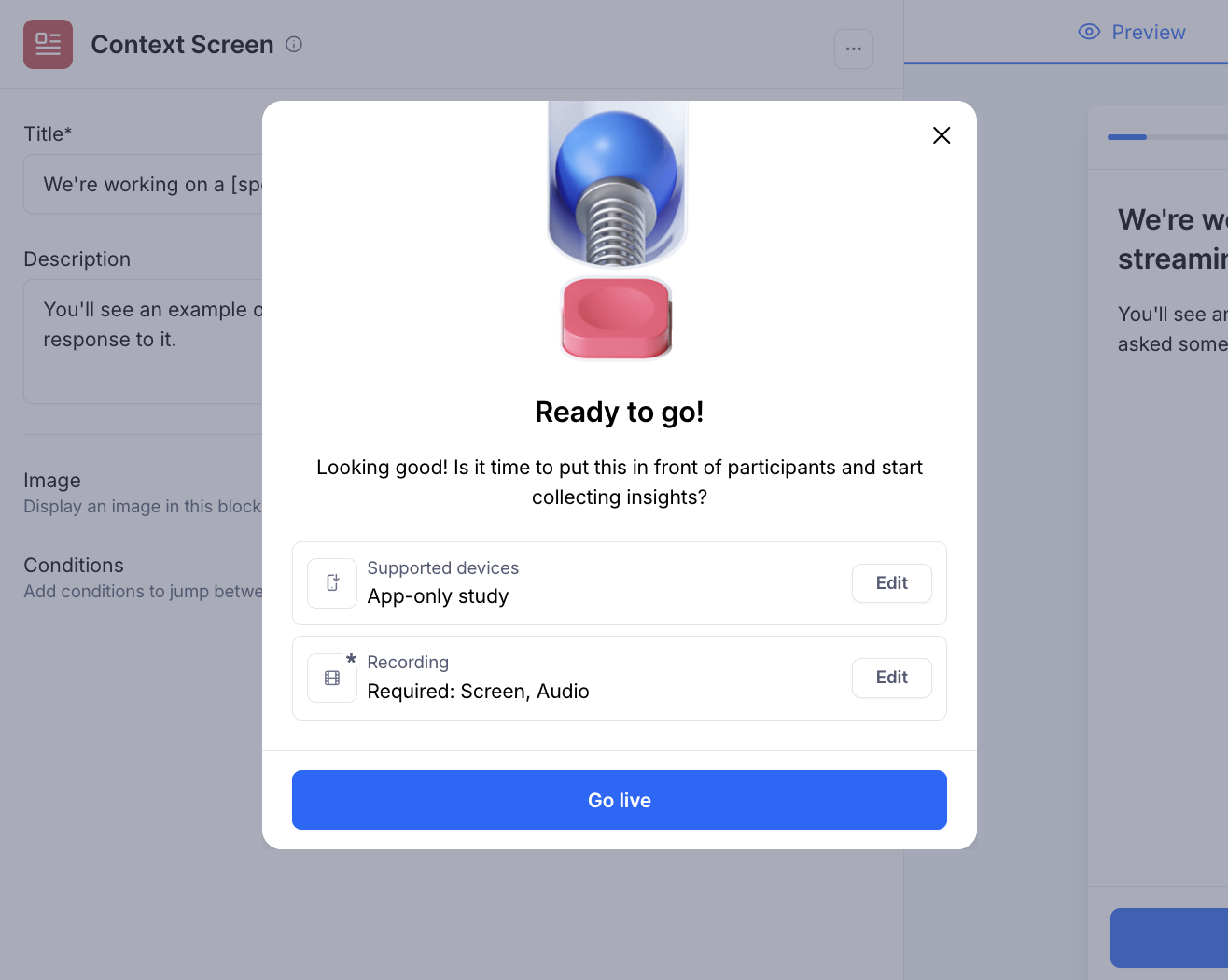
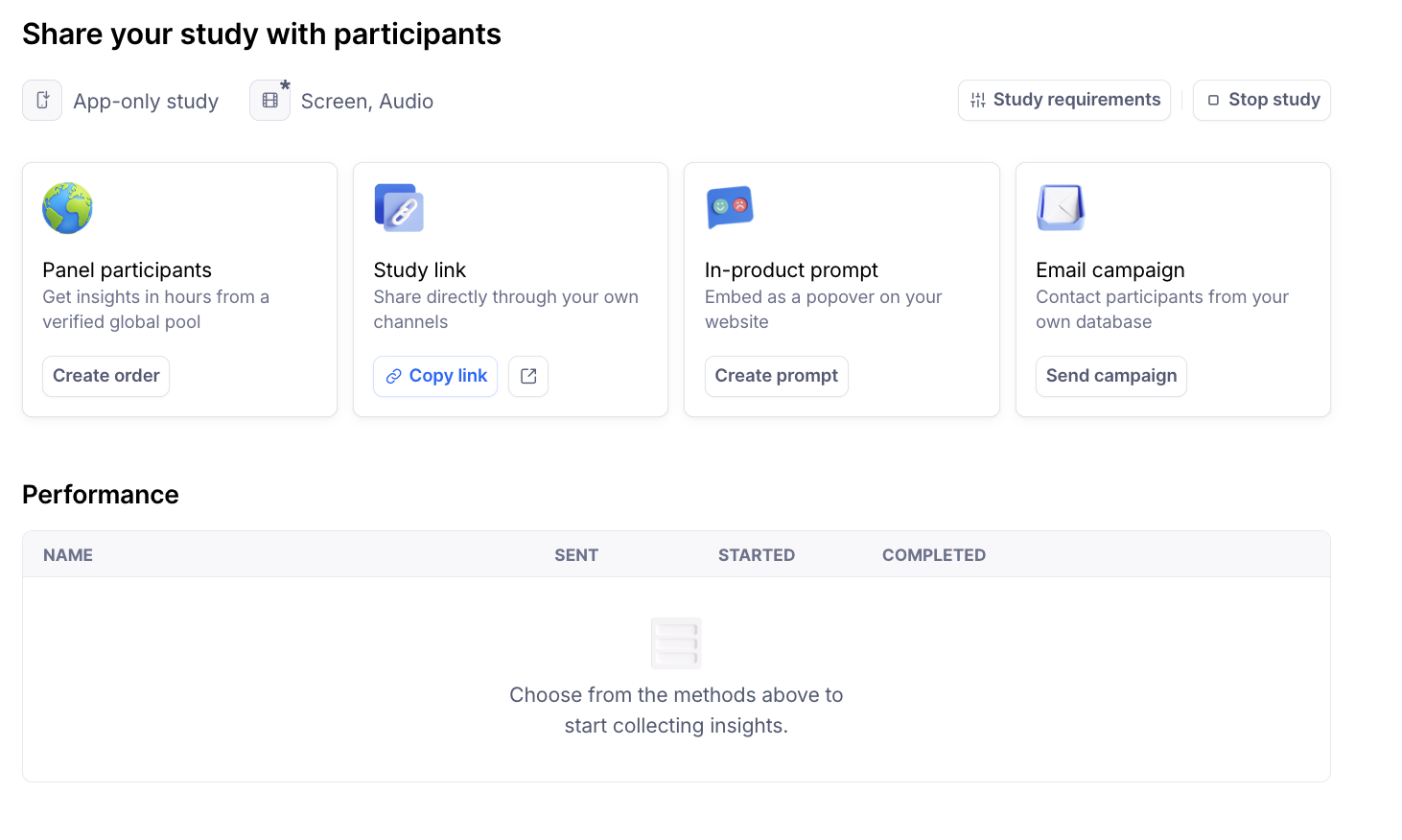
Once your study is configured, click ‘Go live’. Maze will then take you to ‘Share your study with participants’, where you decide how to bring mobile users into your study.


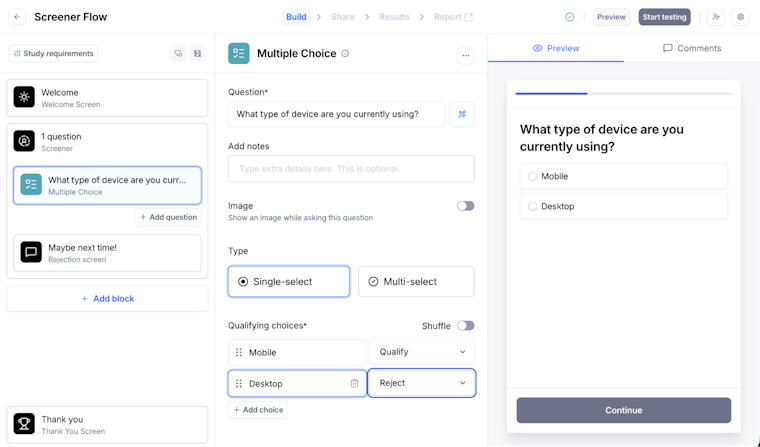
💡 Monitor and report low‑quality panel responses. As results come in, use the ‘Participants tab’ to review individual sessions and report any panel participants who don’t match your criteria, ignore tasks, or submit low‑quality answers. The Maze team can review reported participants and help resolve quality issues.
Step 4: Capture and analyze high-quality mobile data
If you’ve followed along so far, you’ve set up your mobile study in Maze, chosen your preferred study type, and recruited the right participants. Now it’s time to review how they moved through your tasks, where they hesitated or changed course, and what they shared about the experience.
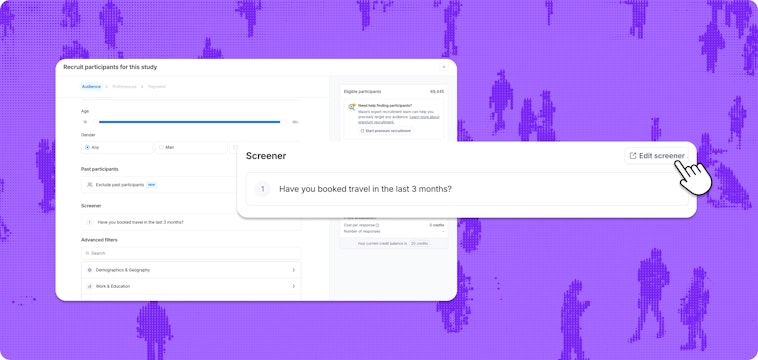
After participants complete your study, open the ‘Results’ tab. Maze automatically organizes the data for each block, so you can review how mobile users completed tasks and what they said about the experience.
Key metrics include:
- Mission success: The percentage of users who completed the task, including expected and unexpected paths
- Direct success: The percentage of users who followed the path you defined as expected
- Drop-off: The percentage of users who didn’t complete the mission
- Misclick rate: The percentage of taps outside hotspots or interactive areas
- Average duration: How long users took to complete or abandon the task
- Mission paths: The routes users took through the prototype or live website
- Heatmaps: Where users tapped, clicked, or interacted on each screen
- Question responses: Answers from open-ended and closed-ended questions
You can also filter results by outcome, device, and other attributes. This helps you zoom in on specific groups, such as users who didn’t complete a task or participants using a particular mobile device.
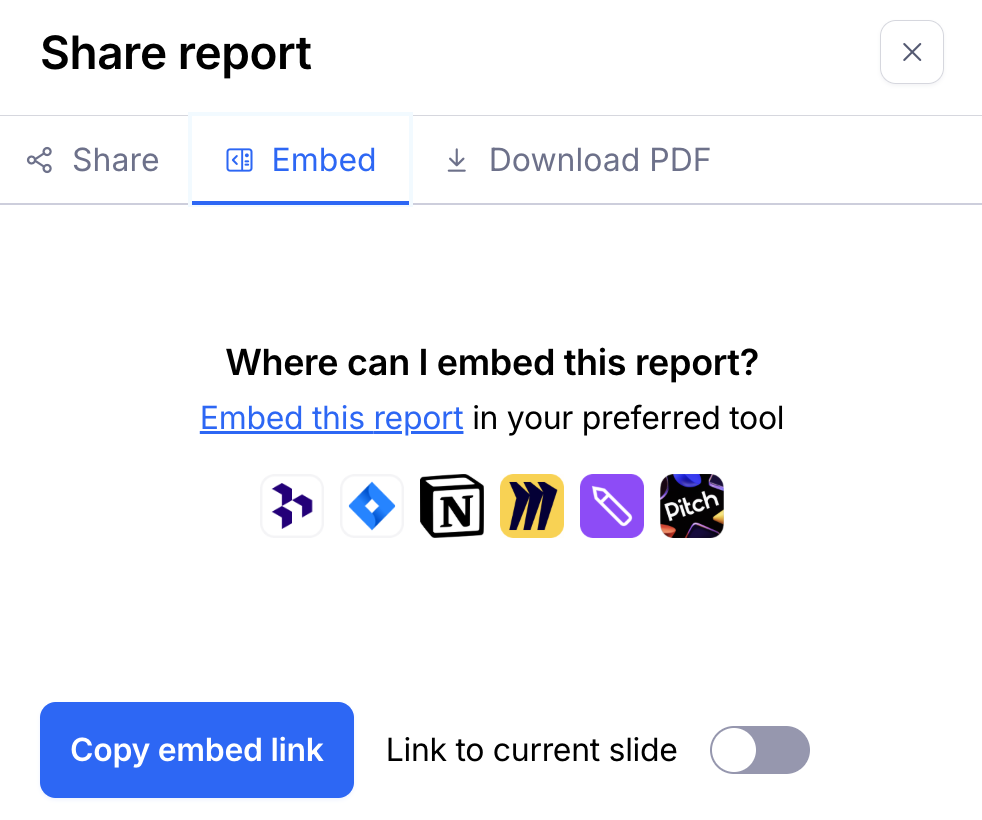
Once you’re ready to share findings, open the ‘Report’ tab. Maze creates an editable report with key metrics, charts, and screenshots. You can add commentary, customize the report, and share it through a public link, embed it in tools like Notion or Jira, or export it as a PDF.

Best practices for mobile app user research with Maze
Mobile UX comes with its own constraints, including smaller screens, varied devices, and shorter attention spans. Here are a few best practices to help you design Maze studies that respect those constraints and still give you actionable insights for product decisions.
- Keep each study focused on one flow: Design every maze around a single primary outcome, like onboarding, search, or checkout, instead of mixing several journeys in one study. This keeps mobile sessions short, reduces drop‑offs, and makes it easier to see which changes actually move the needle.
- Write mobile‑first tasks and questions: Use short, concrete prompts that fit on a phone screen and describe exactly what you want people to do (for example, “Change your email address” instead of “Explore your account”).
- Use Clips to capture behavior and context: Turn on screen recording (and microphone when you can) so you see taps, scrolls, and hesitations alongside what users say. This is often more valuable than running a larger, video‑free sample, and it powers highlight Reels you can share with stakeholders.
- Avoid overloading a single test with complex flows: Keep the number of missions and blocks small enough that participants can finish in one sitting on mobile. If you have multiple complex flows and functionality to validate, run a series of smaller mazes instead of one mega‑study.
- Mix unmoderated and moderated research: Use unmoderated Prototype, App Test, and website test studies to quantify where people succeed or fail, then schedule a few moderated interviews (or upload existing sessions) to understand why those issues happen. Together, they give you both scale and depth for mobile decisions.
- Share reports and Clips to drive buy‑in: Use Maze reports to find a few key metrics, paths, and heatmaps, then add 2–3 short Clips that show real mobile sessions. Share the report link or embed it in your team’s tools so product and engineering see evidence first, opinions second.
Next, let’s take a look at a real customer example to see how this approach to mobile testing with Maze works in practice.
Case study: Example of a customer testing mobile experiences with Maze
Doctolib is one of Europe’s largest healthcare platforms. It helps patients book appointments and manage care and works with more than 100,000 health professionals and 2,000 health facilities worldwide.
As Doctolib’s mobile app had grown beyond appointment booking, users could now manage documents, relatives, video consultations, and more. But many people were still using the app mainly for appointments, and internal data showed that at least 70% of users were not engaging with the newer services. The team needed to rethink the app’s navigation so these features were easier to find without complicating the experience.
To validate a new navigation approach, Doctolib used Maze to run unmoderated mobile prototype tests in France and Germany. They tested real tasks—including booking an appointment, checking appointment details, previewing a medical document, and accessing relatives. Within a few days of launching the Maze study, they collected 4,000+ responses in France and 500+ responses in Germany.
The results gave the team clear direction:
- Only 11% of testers used ‘Book an appointment’ in the tab bar as their first click
- 60% of French users accessed documents through the tab bar
- 51% of German users accessed documents through the tab bar
- Users preferred direct access to appointment lists through the tab bar
- The new Home icon helped users understand where they were in the app
- The team kept the tab bar for Home, Appointments, Documents, and My Account
- They removed “Book an appointment” from the tab bar and tested a new floating action button instead
This is a good example of how mobile app research helps teams move beyond assumptions, see how people actually navigate on smaller screens, and make confident changes before releasing them to millions of users.
Get started with mobile research in Maze
When you’re designing or improving an app or website for mobile, it’s easy to rely on your team’s assumptions about what people notice, tap, or understand. With the right setup, you can test real mobile experiences early, validate key flows, and keep improving based on user behavior.
Maze brings mobile app research into a single workflow. You can test prototypes, live apps, and mobile websites, recruit the right participants, and analyze results without switching tools. Whether you’re refining navigation, improving onboarding, or validating a new feature, you can move from idea to insight at the speed of product development.
With Maze, teams build better mobile experiences, one test at a time.


Frequently asked questions about mobile app research with Maze
Can I test mobile apps with Maze?
Can I test mobile apps with Maze?
Yes. Maze supports mobile testing for prototypes, native iOS and Android apps (via App Tests and Maze Participate), and live mobile websites through Website Tests, across both unmoderated and moderated studies.
How do I recruit mobile participants in Maze?
How do I recruit mobile participants in Maze?
Once your study is live, you can recruit via the Maze panel (with device targeting for mobile/tablet), share a study link with your own users, trigger in‑product prompts, or send an email campaign, all from the ‘Share your study with participants’ screen. Device settings and screener blocks help you ensure only mobile users and the right segments get through.
What metrics does Maze track for mobile research?
What metrics does Maze track for mobile research?
For mobile prototype and website tests, Maze tracks success rate, drop‑off, misclick rate, and average duration per mission, as well as mission paths, heatmaps, and question responses. These metrics are available in the Results and Report views for each study.
Does Maze support moderated mobile interviews?
Does Maze support moderated mobile interviews?
Yes. You can run moderated studies with live interviews and scheduling, upload existing session recordings for analysis, and hire moderated panel participants specifically for these interview studies if needed.