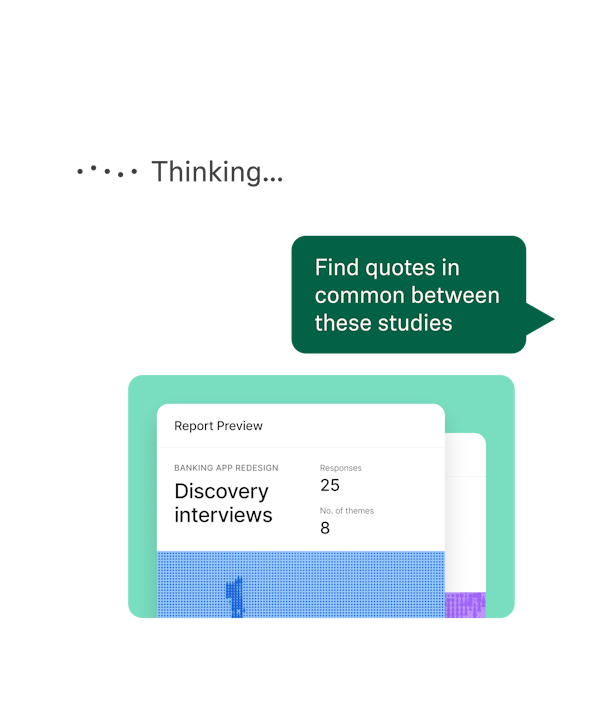








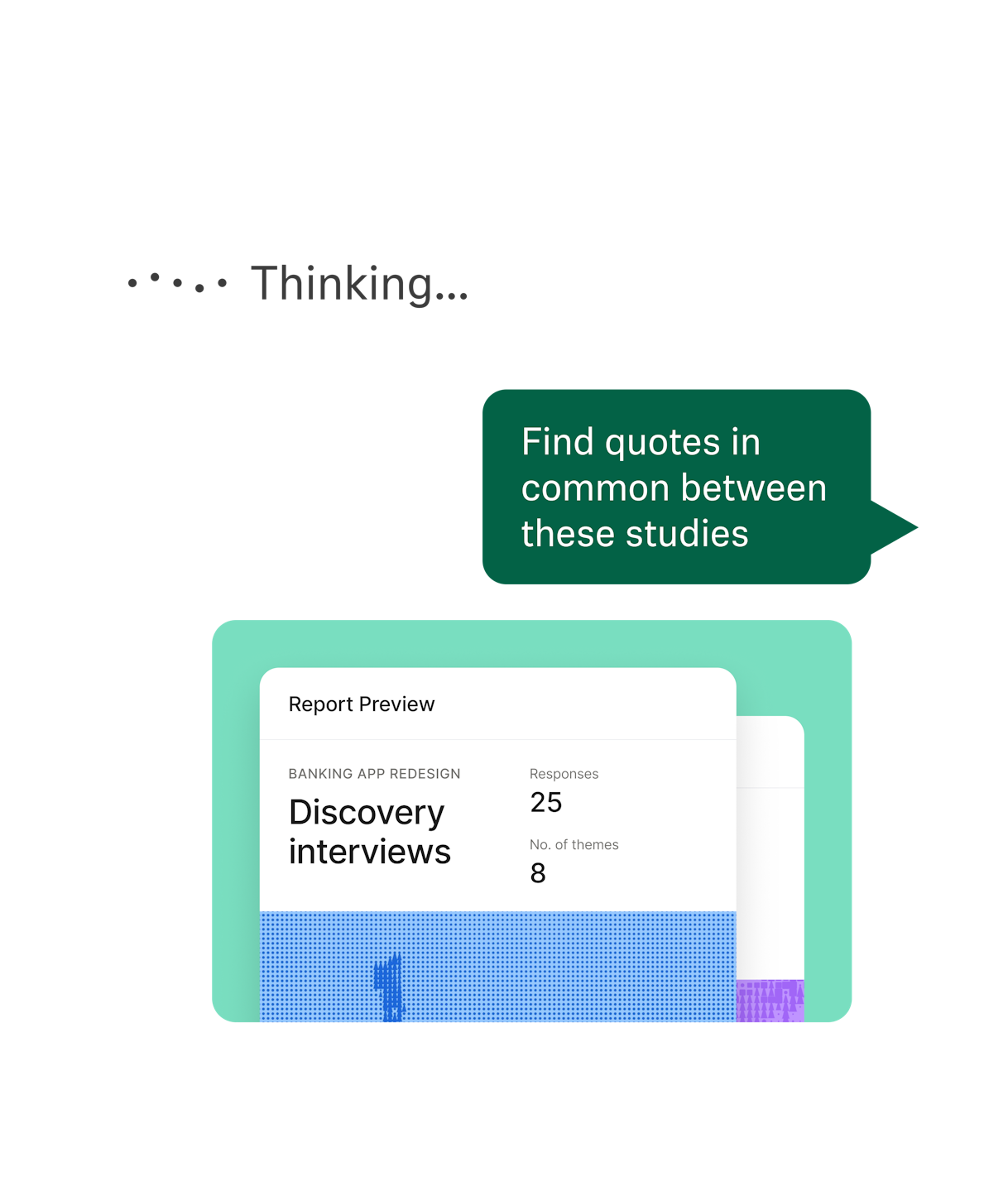





Since launching Maze MCP, researchers have been using it in a multitude of ways: pulling pain points from an entire study, comparing design variants, checking the quality of their research data, and getting straight to the participant evidence behind a finding. Some teams are even building their own agents on top of MCP.
In case you missed it, Maze MCP connects your Maze research to the apps and agents you already use, making it easier to bring what your team has already learned into the decisions happening now. You can ask questions about your studies, view participant feedback, compare results, pull quotes, and more—without manually moving research data between tools. And if you’re an Enterprise customer, MCP is already available for your team, with no request process or waitlist.
If you’ve connected MCP and had a moment of “Okay... now what?” you're in good company. We’ve put together the ways our customers have been using MCP, alongside best practices to help you get useful results from the start.
Prompt your way to the good stuff
You don’t need to become an expert prompt writer to use MCP well. A few habits can make a noticeable difference in the questions you ask, and the answers you get.
Include the study link:
If you know which study you want to work with, paste its Maze URL into your prompt. It scopes the request to the right study and makes retrieval more reliable.
✏️ Prompt: “In this study [link], what were the main issues participants had with our new navigation?”
Start small, then dig deeper:
You might not need every session to answer every question. Start by asking for the shape of the study: its blocks, number of sessions, and aggregate results. From there, decide what deserves a closer look.
✏️ Prompt: “Here’s a study [link]. Before we go deep, give me the structure, how many sessions came in, and the aggregate stats. Then tell me which areas look worth investigating further.”
You might discover that one task has an unusually high misclick rate, or that one open question contains much richer feedback than the rest. Now you have somewhere useful to go next. Starting with a summary also means you’re only pulling more research into the conversation as you need it.
Give your prompt some guardrails:
No matter the sample size, your analysis should be honest. While the MCP gives your agent the research data (like sample sizes and aggregate results), the interpretation of that data is up to the agent, and ultimately, you. When you’re working with a smaller sample, tell it how you want those results handled.
✏️ Prompt: “Identify the main themes in this study, but flag anything that came from only one participant rather than presenting it as a wider trend.”
Share what you’re trying to understand:
The more context you give about what you’re looking for, the more useful the response can be. You can ask your agent to group feedback into themes, compare segments, look from a particular point of view, keep participant responses separate, rank issues by frequency, or shape the output around whatever you’re working on next.
✏️ Prompt: “Review this study [link] from the perspective of a product team deciding what to fix before launch. Group the usability issues by theme, show how many participants encountered each one, and include two representative quotes per theme.”
6 ways to put your research to work
During the beta, a few patterns kept coming up, from getting a quick read on a study to digging into individual sessions. Here’s six ways teams are putting MCP to work.
1) Find the patterns hiding in your research
This was one of the most common use cases we saw in the beta. Instead of working through transcript after transcript to build a list of recurring friction points, researchers used MCP to look across an entire study to identify recurring themes and get the participant evidence behind them.
Start with: “What are the top pain points from this study [link]? Rank them by how frequently they came up, tell me how many participants mentioned each one, and include representative quotes.”
Get more specific: “How comfortable are users using [product], based on this study [link]? Show me the main themes in their feedback and the evidence behind each one.”
Or when you already know what you’re looking for: “Based on the transcripts in this study [link], what are the strongest quotes about [topic]? Group them by theme and include the participant ID for each.”
2) Understand the study before you dive in
Oftentimes the first question isn't about a finding at all. It's simply: what am I working with? During beta, teams used MCP to review study structure and aggregate results before deciding where to spend their attention. That might mean checking which blocks were used, how many sessions came in, where the most useful qualitative data sits, or whether the study contains the type of evidence you’re looking for.
Start with: “Here’s a study [link]. Before we dive into the analysis, give me an overview of the structure: what blocks it has, how many sessions came in, and the aggregate stats.”
Then you’re ready to move into the specifics: “Based on that summary, what’s worth drilling into and what can I skip?” or “Does this study [link] use a Figma or Lovable prototype block?”
Once you know what’s there, ask: “Based on that summary, what’s worth investigating more and what can I skip?”
3) Compare the experience, not just the score
If you’ve tested multiple versions of a design, you already know that “Variant B performed better” only gets you so far—what matters is understanding the behavior behind the result. MCP can help you take the open-text responses and session data for each variant and identify what participants experienced across themes.
Start with: “In this study [link], pull the written explanations for each variant separately. Identify the recurring themes for each, then compare them.”
You can also zoom in on one version: “For the [variant name] variant in this study [link], what did participants say worked well, and what was still a problem? Include the participant evidence behind each theme.”
4) Spot the sessions worth a closer look
Not every research task is about finding a theme; you also need to pinpoint whether the data itself is worth trusting. During the beta, teams used MCP to look across sessions for signs of low-quality participation, compare screener responses with what participants said later, and flag anything that was worth a closer look.
Start with: “Review the sessions in this study [link] and flag any that show signs of low-quality or inattentive participation. Explain the evidence for each flag rather than excluding anyone automatically.”
You can also be more specific: “Across the sessions in this study [link], flag anything that suggests a participant was distracted, reading from a script, or coordinating with someone else. Include the participant ID and evidence for each flag.”
There’s an important distinction here: flag, don’t decide. While MCP can help you spot signs across a large participant pool that would be painful to check manually, researchers should always bring human judgment to decide what stays and why.
5) Get a pulse check on the numbers
Whether it’s completion rate, drop-off, screener success, or demographics, MCP can quickly surface the numbers you need. It’s a straightforward use case, and that’s part of the appeal. When someone asks for a study health check, you can easily surface the numbers into a digestible shape without manually assembling them.
Start with: “For this study [link], give me an overview of the recruitment and completion data. Include completion rate, drop-off, segments, demographics, screener success rate, and panel vs. BYOP.”
Then dig into a particular group: “Break those results down by [audience segment].” or “Compare completion and drop-off between participants who answered [X] and participants who answered [Y].”
6) Go back to what participants said
Perhaps you want to know what a particular person said, or compare how different participants talked about the same topic without flattening their responses into one summary. Reading specific sessions and comparing individual participants was another popular use case we saw during the beta.
If you know the participant you’re looking for, start with: “Open the session for participant [ID] in this study [link] and pull their quotes about [topic]. Include enough surrounding context for me to understand each quote.”
If you want to keep people separate: “In this study [link], what did each participant say about [topic]? Keep each participant separate rather than summarizing across them.”
You can also view answers to one question across an entire study: “Pull the answers to [specific question] from every participant in this study [link]. Keep the participant IDs attached.”
⚙️ Want to go further? Build your own agent
Because Maze MCP is a server, teams can build their own agents and internal workflows on top of it. We’ve seen early examples of customers experimenting with custom agents that could retrieve Maze research for people across their organization.
It’s a more advanced use case, and not where everyone will start, but it’s a good example of how your research doesn’t have to live in one place (especially if your organization already has existing workflows).

Start with one study and one prompt
You don't need an elaborate MCP workflow on day one. Choose a study and see where your prompt takes you. Your team has already done the hard part: talking to users and collecting the evidence. But research is only as valuable as the decisions it reaches. Maze MCP gives you another way to bring that evidence into the tools your team already works in, and while the decision is still live.
Ready to connect the dots?
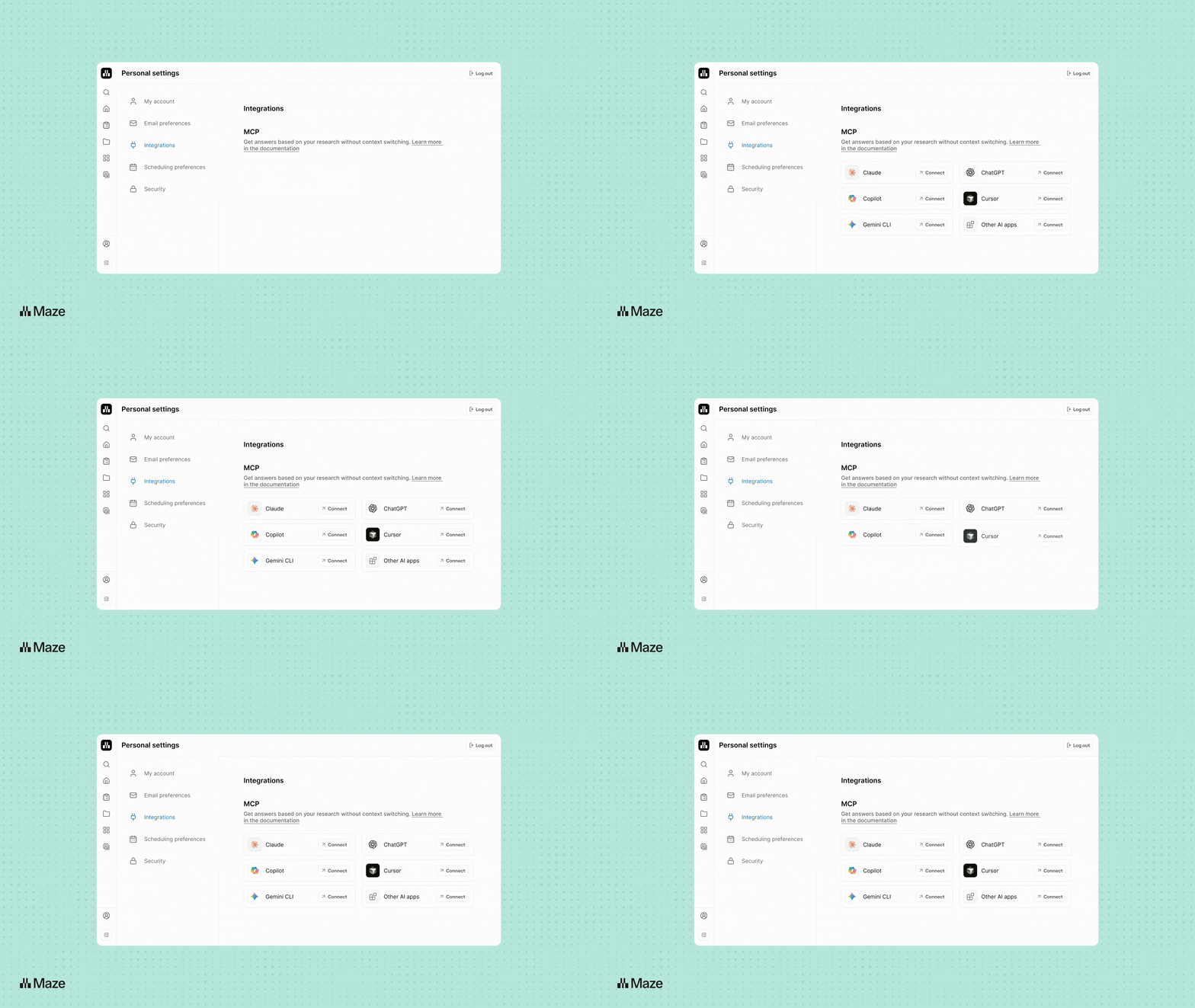
Maze MCP is available on all Enterprise plans. Head to Personal settings → Integrations, find MCP, and select Connect with Agent to get started. From there, follow the setup instructions for the app you want to use. The MCP inherits your existing Maze permissions, and admins can control which teams MCP can access. It's read-only, so connecting an app doesn't give it the ability to create, edit, or launch anything inside Maze.
Happy prompting! And don’t forget to say please and thank you.